

CollabSpaces are a powerful feature within NetDocuments that enable secure, seamless collaboration with external users—such as clients, partners, or third-party vendors—without ever leaving the NetDocuments ecosystem. Instead of downloading files or relying on email attachments, users can create a CollabSpace within an existing workspace, add relevant documents, and share access with external parties. This approach preserves the integrity of your document management workflows while enhancing security and control. In this blog post, we’ll dive into the most frequently asked questions about CollabSpaces, gathered from fundamental user interactions and training sessions.
How do Folders work in CollabSpaces?
See: How to deal with folders in CollabSpaces
How do I know if a client has uploaded documents to a CollabSpace?
Go to the CollabSpace you want to track. Click on the arrow next to the CollabSpace Name and choose Follow. NetDocuments will email you anytime someone uploads or changes a document in the CollabSpace.
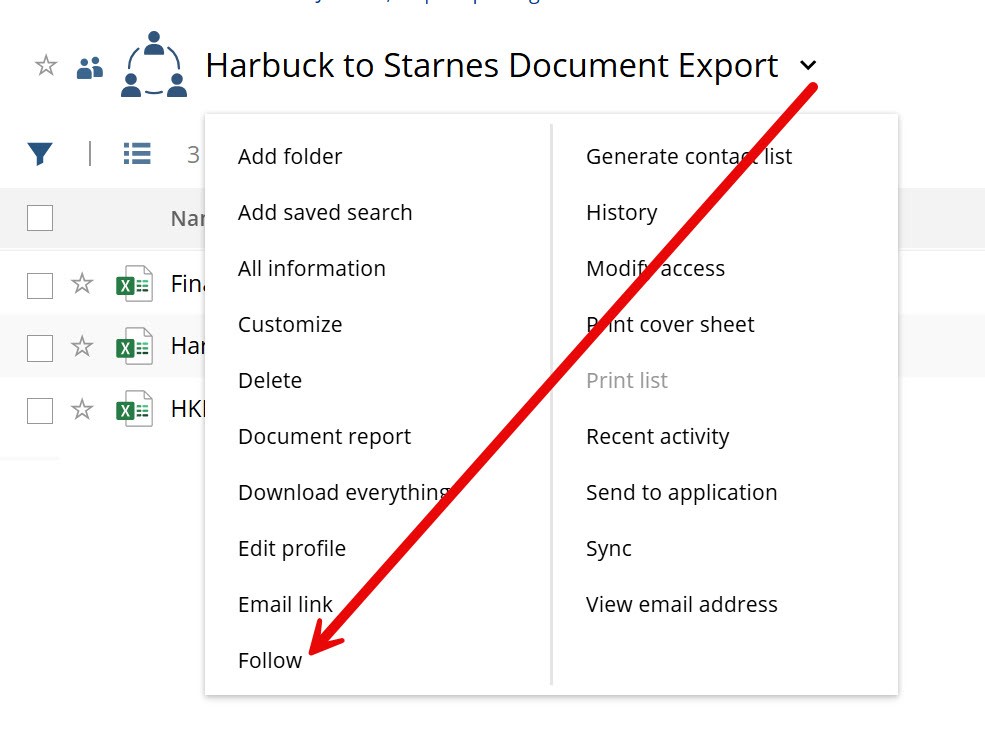
However, this will only work if they upload documents to the root of the CollabSpace. If you have created folders in a CollabSpace and someone uploads documents into that folder, you will not receive an alert about the upload.
External Users cannot see the documents that I have created in a CollabSpace.
This happens when a CollabSpace is created out of order. See: External Users cannot see documents in CollabSpaces.
How do I add or remove users from an existing CollabSpace?
I am having trouble adding users to a CollabSpace
This can happen if a user has an email address added in an extension other than .com, .org, or .net. We have seen it with the extension .group. The workaround is to have a NetDocuments Admin go to Users and Groups and create the User there. Then go back to the CollabSpace and add the User to the group. See: How to add a user to a CollabSpace.
What are the steps to properly create a CollabSpace?
- Click Add Collabspace
- Give the Collabspace a Name and Click OK
- Click OK
- Click Create CollabSpace Group
- Give the Group a Name
- Move your Mouse to search for External Users, then click Add User.
- Fill in the User’s information and click Create User.
- Click Create Group
- Choose the Correct Security
- Click Close
Can External Users edit documents in CollabSpaces?
Yes, they can, and they don’t need NetDocuments installed on their PCs. See: https://optiable.com/how-to-have-external-users-edit-documents-in-collabspaces/
Do you have any training materials for CollabSpace Users?
We have created several videos and a manual to help your clients make the most of CollabSpaces.
See: How to use CollabSpaces as an External User
Can you move a CollabSpace to another matter?
No. CollabSpaces are hard-coded to the matter that you created. However, you can create a new CollabSpace and move all the contents from the old space to the new space.
Can you have the Client’s email Documents directly to a CollabSpace?
See: How NetDocuments External Users Can Email Documents to a CollabSpace
Can Clients upload Folders to a Collabspace?
See: How External Users Can Upload Large Files and Folders to NetDocuments Using ndOffice