

When collaborating with external parties—whether they’re clients, co-counsel, or consultants—sharing large files and folders can be challenging. NetDocuments’ ndOffice plugin provides external users with a powerful, efficient way to upload substantial amounts of data directly into your document management system without the limitations of email or basic web uploads.
What is ndOffice?
ndOffice is NetDocuments’ desktop integration tool that seamlessly connects your Windows computer with your NetDocuments repositories. For external users, it provides a familiar, drag-and-drop interface that makes uploading large files and entire folder structures straightforward and reliable.
Why Use ndOffice for Large Uploads?
Speed and Reliability: ndOffice handles large file transfers more efficiently than web browsers, with built-in resume capabilities if your connection is interrupted.
Bulk Operations: Upload entire folder structures while maintaining their organization, rather than selecting files one by one.
Size Limits: Unlike email or some web portals, ndOffice can handle files of up to 50GB, making it ideal for large documents, videos, or CAD files.
Background Processing: Continue working while your files upload in the background.
Getting Started: What External Users Need
Before external users can begin uploading, they’ll need:
- ndOffice Installation: Download and install the ndOffice plugin from NetDocuments (your organization will provide the download link or installation package)
- Microsoft Office Installed: ndOffice can only be installed if Microsoft Office is installed.
- Access Credentials: Login credentials provided by your organization, typically including a username and password
- Upload Permissions: Your organization must grant them appropriate access rights to the specific workspace or folder where they’ll be uploading
Step-by-Step: Uploading Large Files and Folders
Step 1: Install and Launch ndOffice
https://apps.netdocuments.com/apps/ndOffice/ndOfficeSetup.exe
After installing ndOffice, external users should launch the application. On Windows, this typically appears as a system tray icon; on Mac, it appears in the menu bar.
Step 2: Launch ndOffice and Login
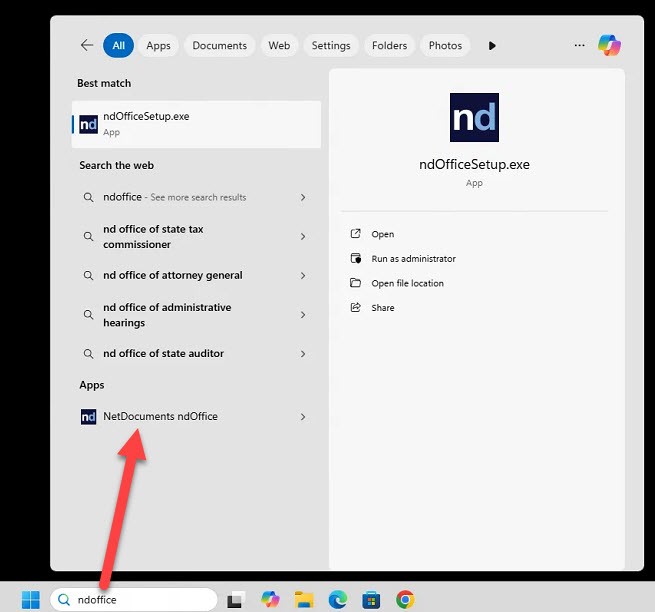
Search ndOffice and log in using your username and email address that you set up with NetDocuments.
NOTE: How to Reset my NetDocuments Password
Step 3: Select the Upload Option
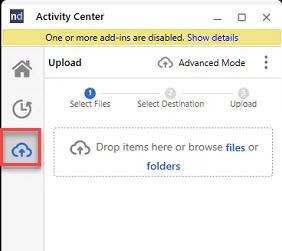
Step 4: Drag Folders or files onto this window

NOTE: You can also right-click on any folder or file and Select “Import to NetDocuments.”
Step 5: Select your Destination
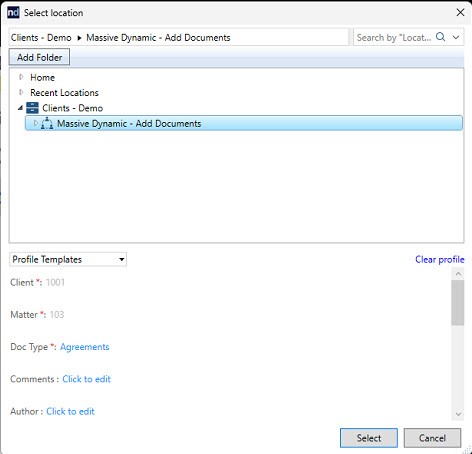
ndOffice displays a progress indicator showing:
- Files being uploaded
- Upload speed
- Estimated time remaining
- Any errors or issues
External users can continue working on their computer while uploads proceed in the background.
NetDocuments and ndOffice employ enterprise-grade security measures:
- All data transfers are encrypted in transit
- Access can be time-limited and revoked by the host organization
- Detailed audit trails track who uploaded what and when
- External users only see what they’re explicitly granted access to
External users should still follow basic security practices:
- Don’t share your login credentials
- Log out when finished, especially on shared computers
- Report any suspicious activity to your host organization
Conclusion
ndOffice transforms the challenge of sharing large files and folders with external collaborators into a simple, efficient process. By providing external users with this powerful tool, organizations can streamline collaboration while maintaining security and control over their document repositories.
Whether you’re an external consultant uploading project deliverables, a client providing discovery documents, or co-counsel sharing case files, ndOffice makes the process seamless. With its robust handling of large files and folder structures, it eliminates the frustrations of size limits and broken transfers that plague other sharing methods.
The key is proper setup and communication between the host organization and external users. Once credentials are issued and permissions are set, external users will find ndOffice to be an indispensable tool for efficient, secure document collaboration.