

Dealing with Folders in CollabSpaces in NetDocuments

Posted in NetDocuments CollabSpaces, NetDocuments Tips on February 5, 2025 by Craig Bayer


Option 1: Creating a Folder in a CollabSpace


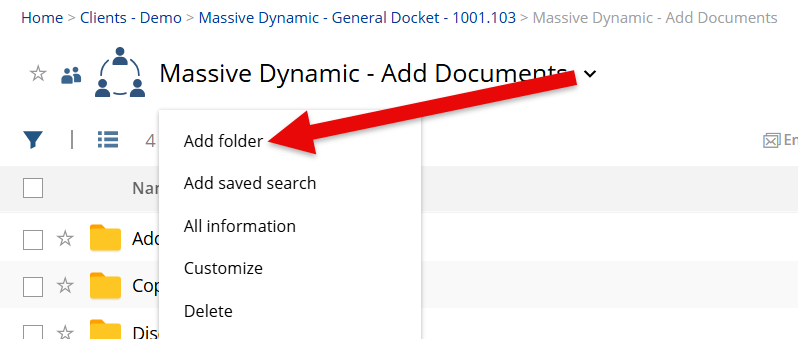
You can easily add a folder to a CollabSpaces by click on the arrow, and then add Folder:
image


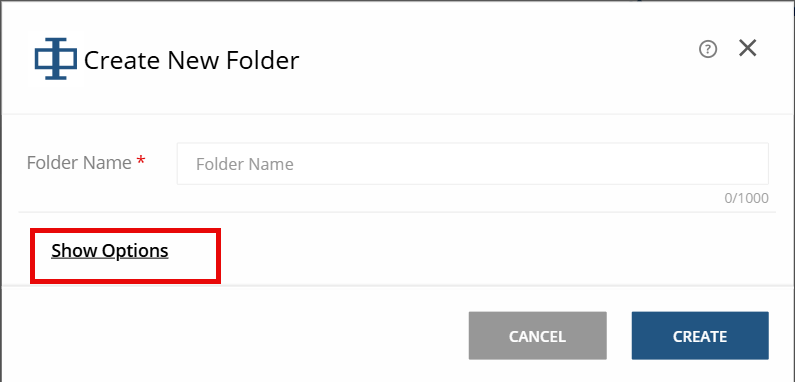
The show options in the folder creation will allow you to assign profile values to that folder:
 

image


We recommend creating a Doc Type and Author called CollabSpaces, so you know where those documents came from.


Option 2 Moving a Folder into a CollabSpace

You can move a folder from NetDocuments into a CollabSpace by using the More—> Move\Copy option.  That folder will not have the correct security, so you will need to go back in and it.

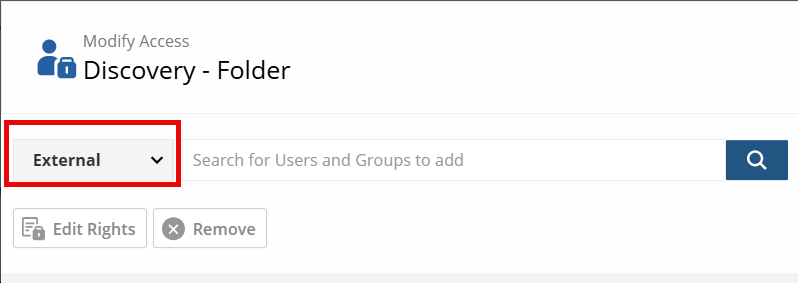
Step 1:  On the Folder, Click More and then Modify Access

Step 2: Change the Groups to External
image

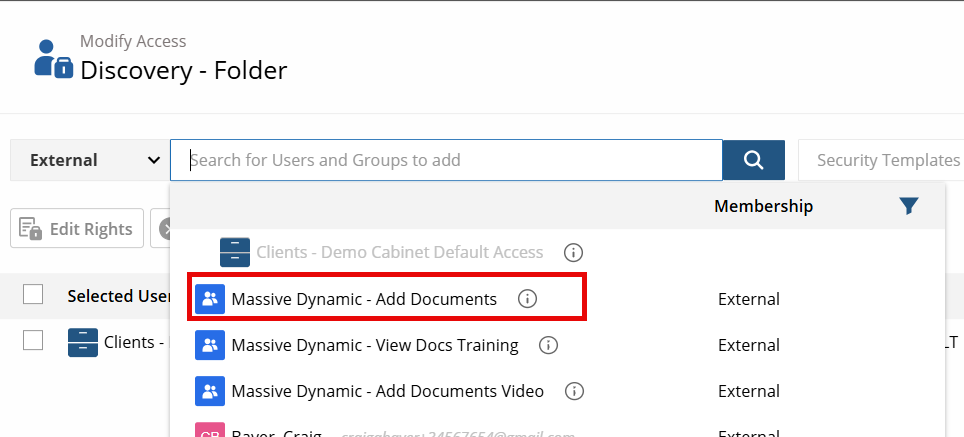
Step 3: Choose the CollabSpaces Group
image


About the Author

Craig Bayer is the founder and leader of Optiable, an award-winning document management (DMS) consulting firm dedicated to helping law firms seamlessly integrate NetDocuments. Specializing in firms with 10 to 150 users, he has successfully guided over 500 law firms across the United States and Canada through NetDocuments implementations since 2010.

With deep expertise in the legal industry, Craig has a proven track record of optimizing technology to meet the unique needs of law firms. His certifications include industry-leading tools such as Amicus Attorney, Centerbase, Clio, PCLaw, HotDocs, TimeMatters, Soluno, and Worldox, enabling him to deliver comprehensive solutions tailored to each client’s workflow and goals.

Craig Bayer