

There are four methods for exporting documents out of NetDocuments:
- Method 1: ndWeb Export Tool
- Method 2: ndSync (this article)
- Method 3: ndMirror
- Method 4: Hire Optiable to Export Your Documents
Note: Individual users can also download documents directly from NetDocuments, but this method does not preserve any folder structure or filter organization.
What is ndSync?
ndSync is NetDocuments’ desktop sync application. It works similarly to Dropbox — it creates a live, synchronized copy of your NetDocuments content on your local computer. For export purposes, it’s one of the most practical options, especially when you need to export one or more complete workspaces while preserving the folder structure.
Pros
- Easy to set up and use
- Preserves workspace and folder structure on your local drive
- If a document lives in multiple locations in NetDocuments, it will be exported to each of those locations
- Supports syncing multiple matters at the same time
- CollabSpaces are included in the sync
Cons
- ndSync must be purchased (though most firms already have it as part of their subscription)
- Only exports the current official version — prior versions are not included
- Can run into Windows file path length issues, particularly with long email subject lines
- Does not export metadata (such as Comments, Author, or custom profile fields) into a separate file
Part 1: Verify ndSync Is Enabled
Before you can use ndSync, a NetDocuments administrator needs to confirm that it is enabled for the repository.
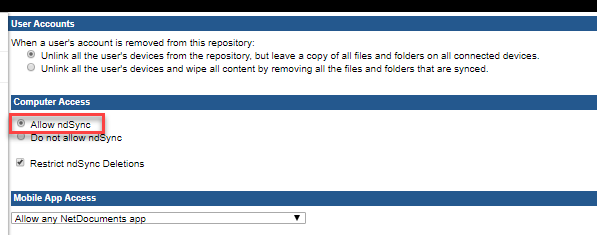
Step 1: In the NetDocuments Admin Console, go to ndSync and Mobile Management

Step 2: Make Sure Allow ndSync is checked
If it says ndSync is disabled for this repository, you won’t be able to use this method.
Part 2: Install ndSync on your computer
Windows: https://optiable.com/installing-ndsync-on-a-windows-computer/
Mac: https://optiable.com/installing-ndsync-on-a-mac/
Part 3: Sync a Workspace to your desktop
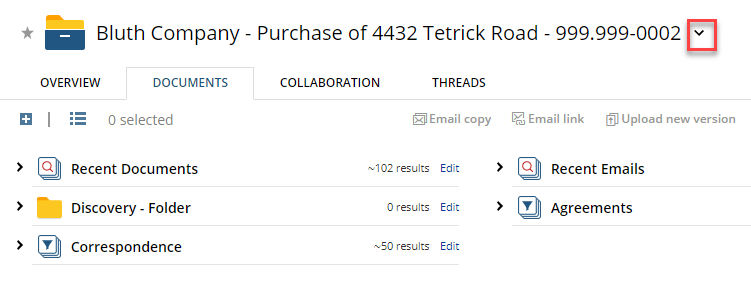
The Bluth Company wants its matter, the Purchase of 4432 Tetrick Road, back.
Step 1: Go to that workspace in NetDocuments and click on the Carrot Next to the Matter Name
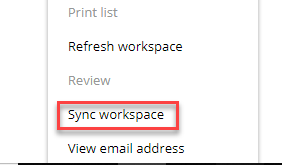
Step 2: Click Sync workspace
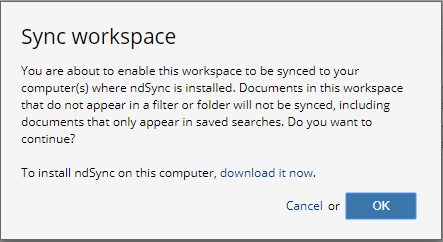
Step 3: Download ndSync if you have not installed it.
We cover installing ndSync in these articles: WINDOWS or MAC
Step 4: Once ndSync is installed, click on the ndSync Icon in the system tray (bottom right corner)
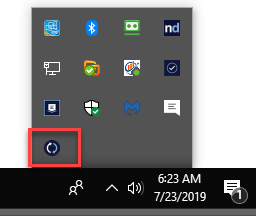
Step 5: Clean up and folder path issues. (Windows Only)
See this article to prevent file and folder path issues from occurring.
Folderpath issues are usually because of email. When you sync something to a Windows computer, you deal with Windows folder path limitations. NetDocuments doesn’t have the limitations Windows does.
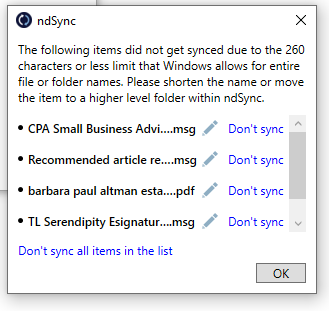
In this instance, I need to shrink the names of some of the emails before they sync on a Windows computer. If I click the pencil next to the title, I can shorten it.
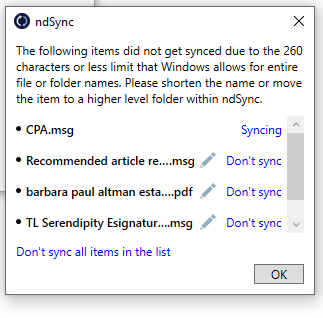
Step 6: Once it stops saying Syncing, click on the folder
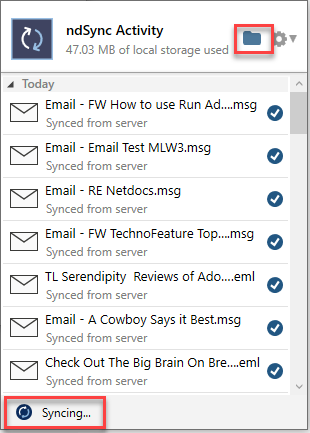
This will allow me to browse the Workspace on my computer.
Step 7: Copy the workspace folder to your desktop
You could copy the folder to a flash drive and send it to the client. If you transmit it via the Internet, you probably want to compress the folder.

Step 8: Download and install 7-Zip to compress the file.
https://www.7-zip.org/download.html
Step 9: Right-click on the folder, choose 7-Zip, and then choose the fifth option.
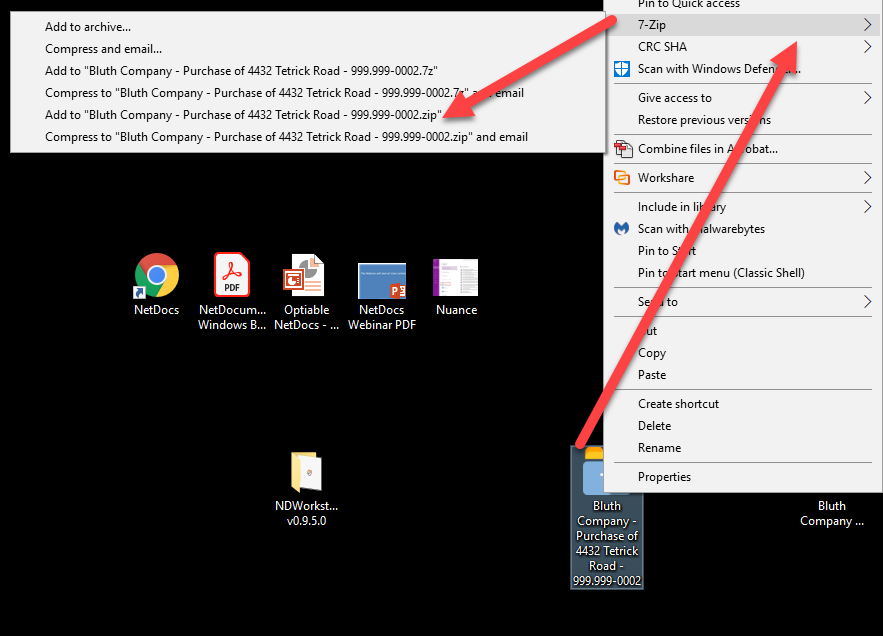
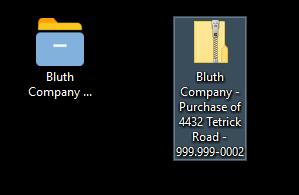
This will create a compressed file.
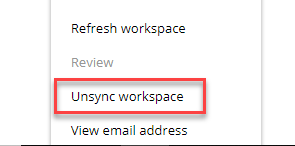
Step 10: In NetDocuments, Choose Unsync Workspace
When you have sent the file, you should unsync the Workspace from your desktop.
Need Help Exporting Files From NetDocuments?
Exporting a single matter is straightforward, but larger export projects — departing clients, firm splits, or full repository migrations — can quickly get complicated. Optiable has helped hundreds of law firms handle NetDocuments exports of all sizes. Contact us if you’d like our help.