

Tired of downloading files to your computer only to manually upload them to NetDocuments? There’s a better way. With the right browser configuration and the NetDocuments Browser Extension, you can streamline your workflow and save documents directly to your document management system as you download them from the web.
This guide will walk you through setting up Google Chrome and Microsoft Edge to work seamlessly with NetDocuments, making it easier than ever to capture and organize web-based documents.
Why This Matters
Legal professionals, consultants, and knowledge workers download countless documents from the web every day—court filings, research articles, client communications, contracts, and more. The traditional workflow of downloading files to your local Downloads folder and then uploading them to NetDocuments creates unnecessary steps and can lead to:
- Files getting lost in cluttered Downloads folders
- Duplicates and version confusion
- Wasted time on manual file management
- Documents left on local drives instead of being properly archived
By configuring your browser properly, you can eliminate these pain points and ensure every important document lands exactly where it belongs in NetDocuments.
Prerequisites:
- Have ndOffice installed
- Install the NetDocuments Chrome Extension
Google Chrome
Step 1: Make sure you are not being asked where to save each file

Step 2: Make sure you are downloading PDFS and not opening them
chrome://settings/content/pdfDocuments?search=pdf

Edge
Step 1: Make sure you are not being asked where to save each file
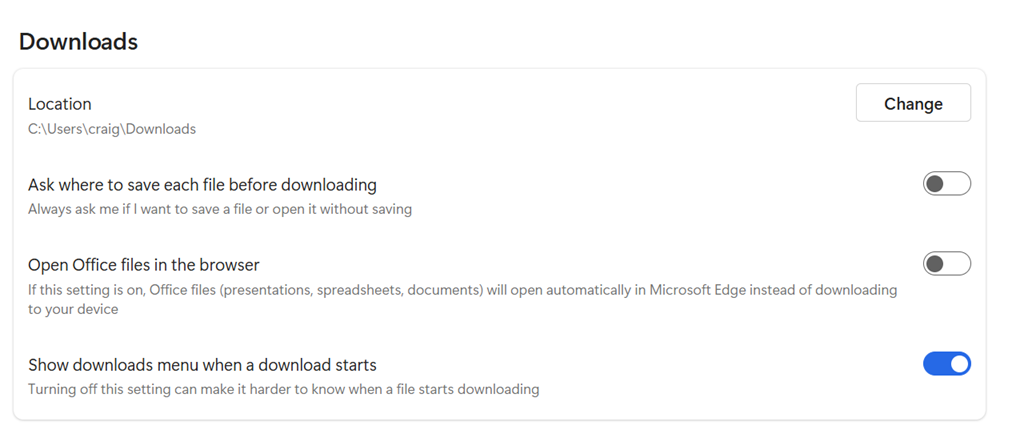
Step 2: Make sure you are downloading PDFS and not opening them
edge://settings/privacy/sitePermissions/allPermissions/pdfDocuments

Conclusion
Setting up your browser to work seamlessly with NetDocuments takes just a few minutes but pays dividends every single day. By installing the NetDocuments Browser Extension and configuring your download settings thoughtfully, you’ll:
- Save time on file management
- Reduce the risk of losing essential documents
- Keep better-organized records
- Work more efficiently across web-based resources
- Ensure compliance with document retention policies
The key is finding the right balance between automation and control for your specific workflow. Start with the recommended settings in this guide, then adjust based on your experience. Before long, saving documents to NetDocuments will become second nature, and you’ll wonder how you ever managed without this integration.
Ready to get started? Open your browser, install the extension, and configure your download settings today. Your future self will thank you!