

If you’ve ever accidentally deleted a document and wondered who can still see it or how to get it back, this post will clear up any confusion.
The Short Answer: The Security Changes
When you delete a document in NetDocuments, here’s what happens to its security:
All access is removed from everyone except the person who deleted it.
Before Deletion:

After Deletion:

That’s right—the moment you hit delete, the document becomes invisible to everyone else who previously had access, including administrators, collaborators, and anyone with shared permissions. Only the person who performed the deletion can see and restore the document.
Understanding NetDocuments’ “Soft Delete” System
Here’s an essential fact that surprises many users: when you delete a document in NetDocuments, it isn’t actually deleted. Instead, it’s marked as “deleted” and moves into a special state that preserves the document while restricting access.
Think of it like moving a document to a private quarantine zone rather than throwing it in the trash. The document still exists in the system with all its content, metadata, and version history intact—it’s just temporarily hidden from view.
Why This Approach Makes Sense
This “soft delete” approach serves several important purposes:
- Protection against accidental deletion – Users can easily recover documents they didn’t mean to delete
- Preservation of document history – All versions and audit trails remain intact
- Administrative oversight – The system maintains a record of what was deleted and by whom
The Deletion Process: Step by Step
Let’s walk through what actually happens when you delete a document:
Before Deletion
- Document has standard security permissions
- Multiple users can view, edit, or share based on their access level
- Document appears in search results and folder listings for authorized users
After Deletion
- Document is flagged as “deleted” in the system
- All previous access permissions are removed
- Only the deleting user can see the document in searches (and NetDocuments Cabinets Admins)
- Document no longer appears in folders or workspaces for other users
Finding and Restoring Deleted Documents
The good news is that restoring a deleted document is straightforward if you know where to look.
If you’re the one who deleted the document, you can find and restore it through Advanced Search:
Step 1: Navigate to the Advanced Search page

Step 2: Select the Cabinet where the document was stored

Step 3: Choose Show More Options (at the bottom of the page)

Step 4: Check the box next to Deleted Items

Step 5: Locate your deleted document in the results
Step 6: Check the box next to the document name

Step 7: Click “More Options” and select “Undelete”

Step 8: Choose where to restore the document (or just click OK to restore to the original location)

Step 9: Go back to the location you restored the document to

Step 10: Click More and then Modify Access

Step 11: Re-add the Cabinet Default Access
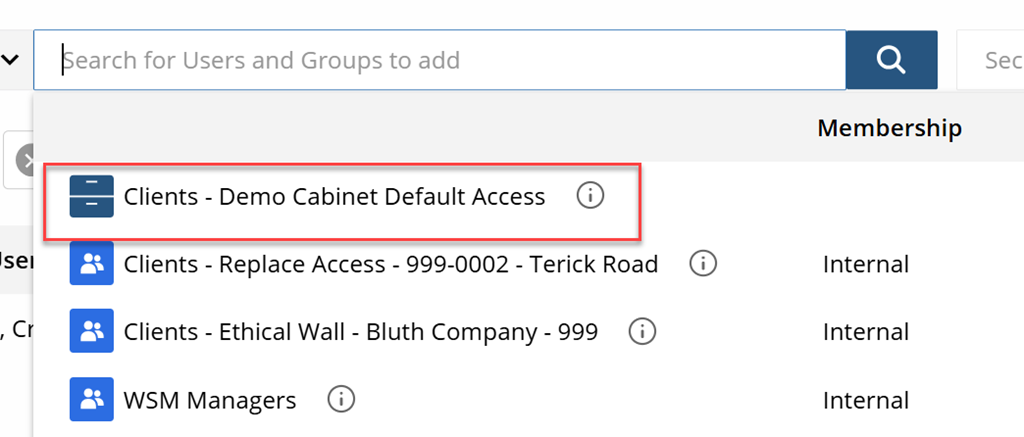
Note: I am assuming the Cabinet Default access was the original security applied to the document.