

When you try to log in to NetDocuments through single sign-on, you may be stopped by an error from Microsoft that reads:
Sorry, but we’re having trouble signing you in.
Your administrator has configured the application NetDocuments to block users unless they are specifically granted access to the application.
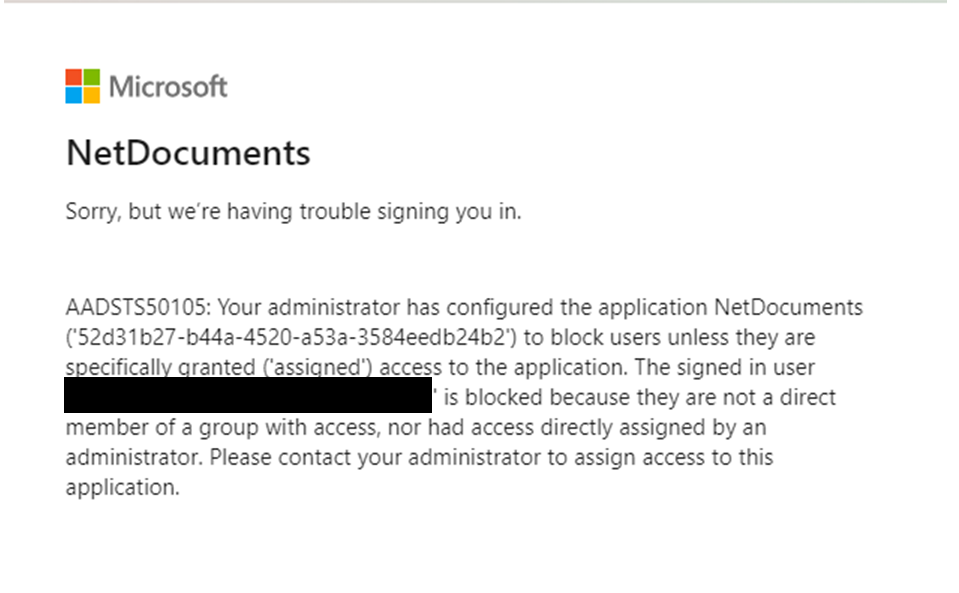
What this error means
This message comes from Microsoft, not from NetDocuments. It appears when your firm has configured the NetDocuments enterprise application in Entra ID (formerly Azure AD) to require assignment, meaning only users who have been specifically granted access are allowed to sign in.
If you are seeing this error, your account has not yet been added to the NetDocuments application in Office 365 / Azure / Entra ID. Until an administrator assigns you, Microsoft will block the sign-in before it ever reaches NetDocuments.
Why does your firm use this setting
Requiring assignment is a deliberate security choice. Rather than allowing everyone in the tenant to access NetDocuments, the firm grants access only to the specific users or groups who need it. That keeps the document management system limited to authorized staff and gives IT a single place to control who can log in.
The trade-off is that every new user and anyone who was missed during setup must be added to the application before they can sign in. When that step is skipped, the user runs into this exact error.
How to fix it
The fix is quick, but it must be performed by someone with administrator rights in your Microsoft environment. The user themselves cannot resolve this from the login screen.
An administrator needs to:
- Sign in to the Microsoft Entra admin center.
- Go to Identity > Applications > Enterprise applications.
- Open the NetDocuments application.
- Select Users and groups.
- Choose Add user/group and assign the affected user or a group that the user belongs to.
- Save the assignment and have the user attempt to sign in again.
Once the user has been assigned to the application, the error clears and the login proceeds normally.
If you would rather hand this off, send this article to your IT team. It walks through the steps to add a new user to NetDocuments when using single sign-on via Azure and will fix the issue.