

Why Are We Exporting Your Documents?
When most people think about exporting documents out of NetDocuments, they assume it means the firm is leaving the platform. In our experience, that is rarely the case. The vast majority of exports we handle fall into one of a few common scenarios — an attorney is leaving the firm and taking their matters with them, a client is requesting their file back, or a group of files needs to be handed off for a specific reason. NetDocuments remains the firm’s document management system; we are simply removing certain documents from it.
If you are looking for a step-by-step guide on how to run an export yourself, we have put together a four-part series covering the different methods available — including the ND Web Export tool, ndSync, and ndMirror. But if you have hired Optiable to handle your export, this FAQ is designed to answer the questions we hear most often once clients receive their exported files.
One thing worth mentioning — this is actually an area where NetDocuments shines compared to many alternatives. Many practice management platforms market themselves as document management systems, but when it comes time to export your documents, there is often no real export tool at all. You are left downloading files one at a time. If you have thousands of documents and a client is asking for their complete file, that is a serious problem.
If you are evaluating platforms and document portability matters to you — and it should — make sure you understand exactly how you would get your documents out before you commit to anything.
File Names Include a Document ID and Version Number
You may notice that files have a long number appended to their file names. For example:
Letter to Judge MSJ hearing 4880-0840-7320_1.docx
The 4880-0840-7320 portion is the unique NetDocuments Document ID, and the _1 indicates the version number. This was added intentionally to prevent files with the same name from overwriting each other during export, a common issue with emails and other documents that often share identical names.
You See Multiple Versions of the Same Document
If a document had multiple versions in NetDocuments, you will see each version as a separate file:
Letter to Judge MSJ hearing 4880-0840-7320_1.docx
Letter to Judge MSJ hearing 4880-0840-7320_2.docx
The version number at the end (e.g.,_1, _2, etc.) indicates which version each file represents. The highest number is typically the most recent version.
Why Does Windows Show More Documents Than NetDocuments?
This is expected and nothing to be concerned about. The way NetDocuments counts documents is different from the way Windows counts files.
In NetDocuments, a document with multiple versions is counted as one document. In Windows, each version is its own separate file. So if a document has seven versions in NetDocuments, it counts as one document in NetDocuments but shows up as seven files in Windows.
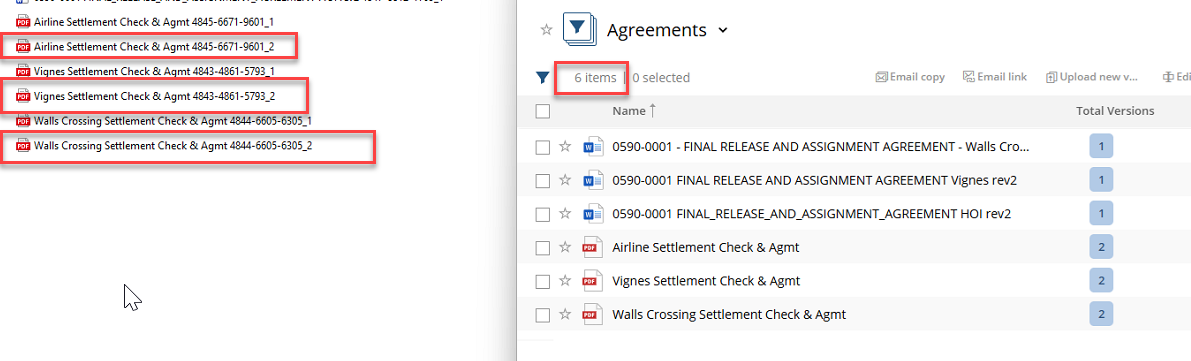
Because of this, the file count in Windows will almost always be higher than the document count in NetDocuments. The more versioned documents in your cabinet, the greater the difference.
The Folder Structure Uses ID Numbers, Not Names
Your folders will be organized like this:
C:\E\1923\2303\Correspondence
Rather than something like:
The Bluth Company\LLC Formation for the new Banana Stand Franchise\Correspondence
The reason for this is a Windows limitation on file path length. Long folder and file names can combine to exceed Windows’ limits. When that happens, those files fail to export — they are skipped entirely with no warning. In our experience, exporting with full client and matter descriptions rather than IDs can result in anywhere from 25% to one-third of your documents failing to export.
Using the shorter Client ID, Matter ID, and Document Type ID ensures every document exports successfully. These folder names can be renamed once the export is complete if needed.
Some Documents May Be in a “No Doc Type” Folder
When documents are saved in NetDocuments, they are typically organized by Client, Matter, and Document Type. However, occasionally a document is saved without a Document Type assigned. During the export, those documents still need to go somewhere, so the export process automatically creates a folder called No Doc Type and places them there.
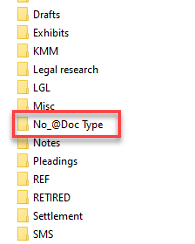
If you see a No Doc Type folder, it will be in the correct Client and Matter folder — it simply means those particular documents were not assigned a Document Type when they were originally saved in NetDocuments. Once the export is complete, you can review the files in that folder and move or rename them as needed.

Some Documents May Appear in More Than One Folder
NetDocuments allows a single document to be filed in multiple locations simultaneously — for example, the same PDF might appear in both a “Discovery” folder and a “Discovery Filter” within NetDocuments. Windows does not work this way; each file can only exist in one place.

To handle this, the exporter may have handled it one of two ways:
Option 1 — No duplication: The document appears in one folder only, and filters from NetDocuments are converted into regular Windows folders.
Option 2 — Full duplication: The document is copied into each corresponding folder, so the structure mirrors its organization in NetDocuments. In this case, you may see what appear to be duplicate files — they are intentional copies.
You May See Client or Matter Folders You Don’t Recognize
If you notice folders for clients or matters that don’t appear in your current client and matter list, this is completely normal, and here’s why.
NetDocuments allows users to assign a Client ID, Matter ID, and Document Type to every document. If someone later deletes a Client or Matter from the profile attribute table in NetDocuments, the documents that were already coded to that Client or Matter don’t disappear — they remain in the system, still tagged with that original ID.
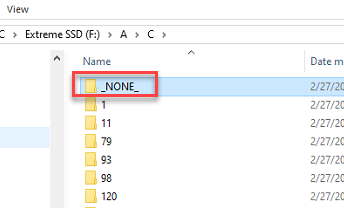
So when we export documents from your cabinet, we also export those documents, placing them in folders based on the document’s ID code. You may end up with a folder for a matter that no longer exists in your table, even if you only asked us to export documents for a specific set of clients.
For example, if you asked us to export everything for Client 53, and there are documents coded to a matter that was later deleted from your profile table, you will still see a folder for that matter under Client 53 — because the documents are still coded to it.

This can happen whether you asked us to export your entire cabinet or just a specific client or matter. If you weren’t expecting to see those folders, that’s the reason they’re there.
You May See Duplicate Folders With Different Capitalization
You may notice that certain matters have two folders with the same name—one in proper case and one in lowercase. For example, you might see both a No Doc Type folder and a No Doc Type folder, each containing a different number of documents.
This happens when a profile attribute value — such as a Document Type, Client, or Matter — is deleted from the profile attribute table in NetDocuments. When someone then opens or refreshes an affected workspace, NetDocuments can duplicate the folder, creating two versions with different capitalization. Documents end up split between them.
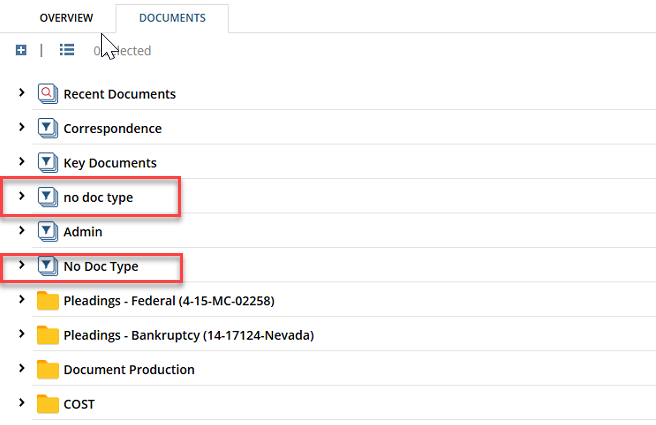
All of your documents were still exported. Nothing was lost.
There is no automated way to fix this. The only resolution is to manually move the documents from one folder to the other, thereby consolidating them in one place.
This is also a good reminder for your firm going forward — profile attribute values in NetDocuments should never be deleted. If a value is no longer needed, it should be closed or deactivated instead. Deleting a value leaves all previously coded documents in an inconsistent state and can cause the exact issues described throughout this guide
You May See a Folder for a Client or Matter You Didn’t Ask Us to Export
You may notice a folder for a client or matter that wasn’t included in your export request, with only a handful of documents. This is a NetDocuments quirk, and here’s what causes it.
In NetDocuments, a document is assigned to a specific Client and Matter when it is saved. However, NetDocuments also allows users to file that same document into a completely different workspace — essentially making it visible in multiple places at once. When that happens, the document’s underlying coding doesn’t change. It still retains the original Client and Matter values assigned when it was first saved.
So when you ask us to export documents for a specific workspace, if a document from a different client or matter has been filed into that workspace, it comes along too — but it exports out under its original Client and Matter coding, not the workspace you asked us to export. That’s why you end up seeing a folder for a client or matter you weren’t expecting to see.
This is correct behavior. The document belongs to that client and matter — it just also happened to be filed in the workspace you asked us to export.
We know this can be a little surprising, but our approach is to make sure you get everything you need rather than risk leaving something out.
How Do I Receive and Access My Exported Documents?
When we export your documents out of NetDocuments, we deliver them to you in one of two ways.
Option 1 — Direct export to your computer. If we have remote access to your network, we can export the documents directly onto your computer or server. This is the fastest method because there are no additional steps — the files land exactly where you want them with no uploading, downloading, or unzipping required.
Option 2 — Delivery via Titan File. If we are exporting files from our computer and sending them to you, we use TitanFile, a secure file delivery platform. Because we are sending potentially large amounts of data, we compress the files into a series of zip files before uploading, with each zip file no larger than 50 GB. A 300 GB export, for example, would be split across six zip files. This method involves a few extra steps — we have to export everything, zip it up, upload it to Titan File, then you download it and unzip it on your end — but it is still a reliable and secure way to get your files.
If your files were delivered via Titan File, follow these steps to download and unzip them correctly:
Step 1 — Download all the zip files into one folder. Log in to TitanFile and download all zip files to the same folder on your computer before you unzip anything. The files are split into multiple parts and must all be in the same folder to unzip correctly. Do not unzip them as you go — download everything first.
Step 2 — Download and install 7-Zip. 7-Zip is a free program available at www.7-zip.org. Download and install it before proceeding.
Step 3 — Unzip the files. Once all files are in the same folder and 7-Zip is installed, right-click on the first zip file in the series and select 7-Zip > Extract Here or 7-Zip > Extract to [folder name]. 7-Zip will automatically pull in all the other parts and extract everything together. You do not need to unzip each file individually.