

You’ve set Chrome or Firefox as your default browser. Yet when you click a link inside Outlook or Teams, it still opens in Edge. This is a known frustration — and it’s one you can fix permanently for your entire organization using a single Cloud Policy in the Microsoft 365 Apps admin center.
Here’s exactly how to set it up.
Step 1 — Name the policy
Sign into config.office.com, go to Customization → Policy Management, and click Create.
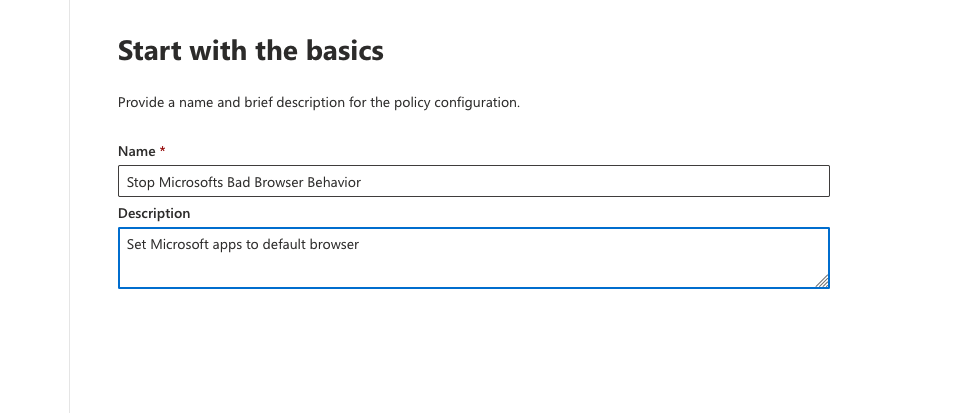
On the first screen, give the policy a name and description that make its purpose obvious to anyone who looks at it later.

Name: “Stop Microsofts Bad Browser Behavior” — Description: “Set Microsoft apps to default browser”
Step 2 — Set the scope to all users
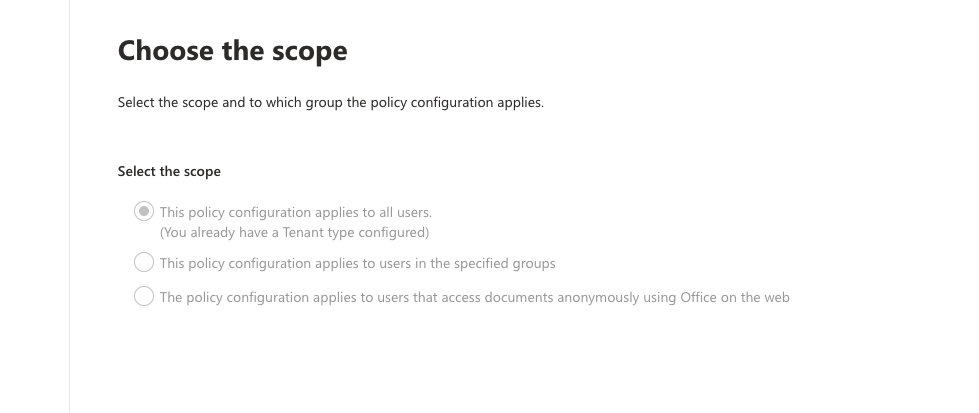
On the Choose the scope page, select This policy configuration applies to all users. This ensures the browser setting is enforced across your entire tenant — no one gets missed because they aren’t in a particular group.

Scoped to all users. The note confirms a Tenant-type policy is already in place.
Step 3 — Configure the browser policy
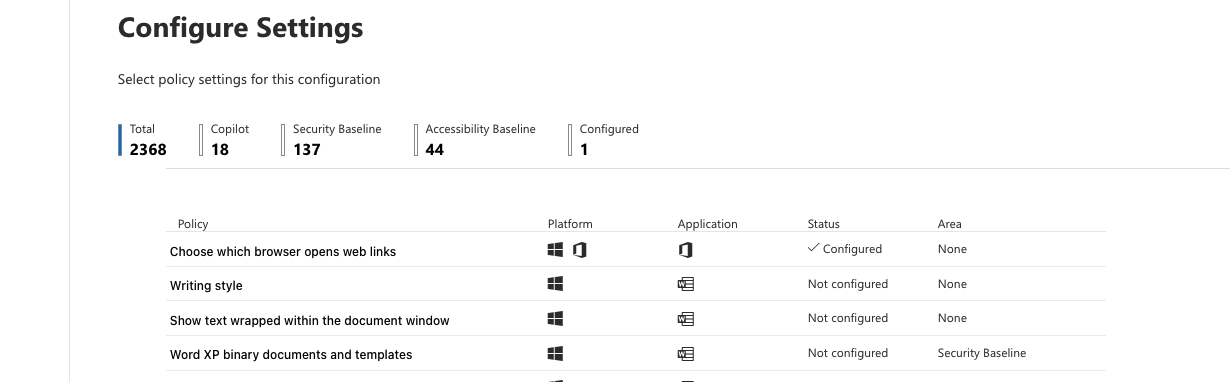
On the Configure Settings page you’ll see the full library — 2,368 available policies in total, including 137 Security Baseline and 18 Copilot settings. Search for “Choose which browser opens web links” and enable it, setting it to your organization’s preferred browser.
Everything else can stay as Not configured — only the one setting you actively change will be enforced.

“Choose which browser opens web links” is the only configured policy. Status column confirms it.
Step 4 — Review and publish
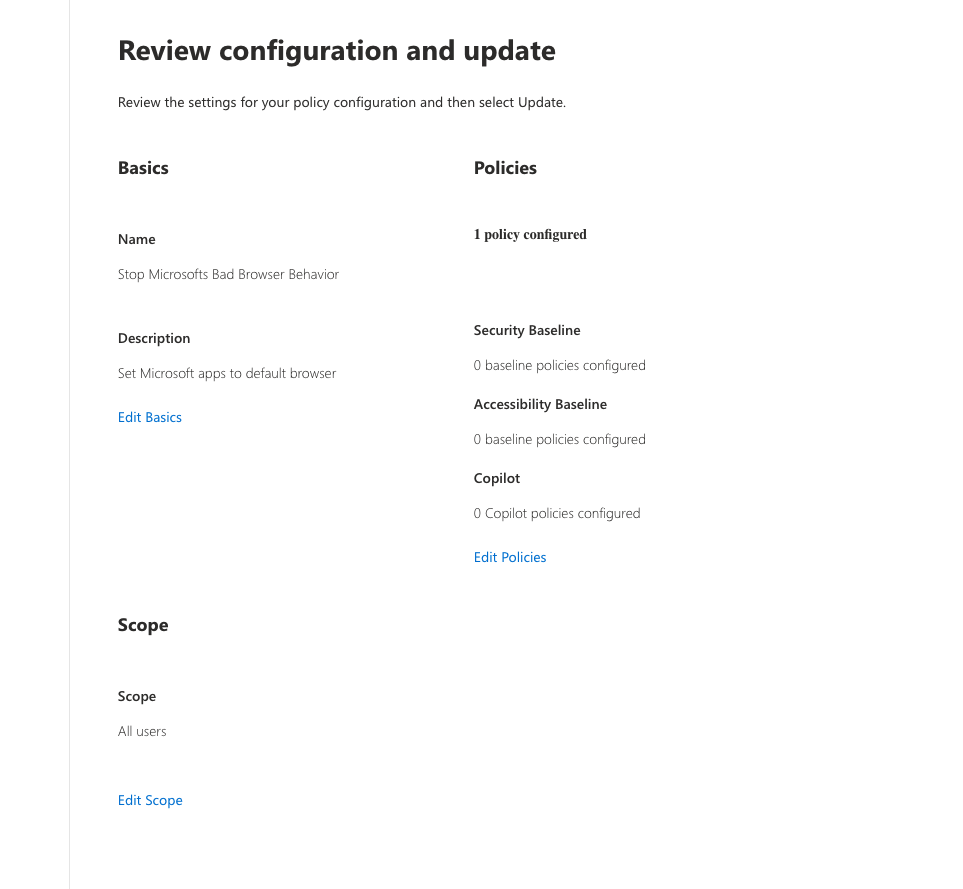
The final screen gives you a full summary before anything goes live. Confirm the basics look right — name, description, scope, and the number of configured policies — then click Update to publish.

Review page showing 1 policy configured, scoped to all users, with Security Baseline and Copilot policies untouched.
When will users see the change?
The policy is live as soon as you click Update, but it doesn’t apply instantly on every device. Microsoft 365 Apps checks in with Cloud Policy regularly — immediately on a user’s first sign-in, then roughly every 90 minutes after that. The setting takes effect the next time the user restarts an Office application like Outlook or Teams.
If someone reports that links are still opening in Edge after the policy was published, ask them to fully close and reopen their Office apps and give it a few minutes. If it still isn’t applying, confirm they’re signed in with a licensed Microsoft 365 account and that their device can reach *.config.office.com.