

If your firm has enabled the Enable External Sharing Outside CollabSpaces cabinet setting in NetDocuments, your internal users won’t notice much of a change in how things look day to day. But the external users you share documents with, clients, co-counsel, or other outside parties, will see a real difference in their Navigation Pane.
This is easy to miss because the people who flip the setting on (firm administrators) aren’t the ones who experience the change. The external users on the other end of that CollabSpace are.
What Changes for External Users
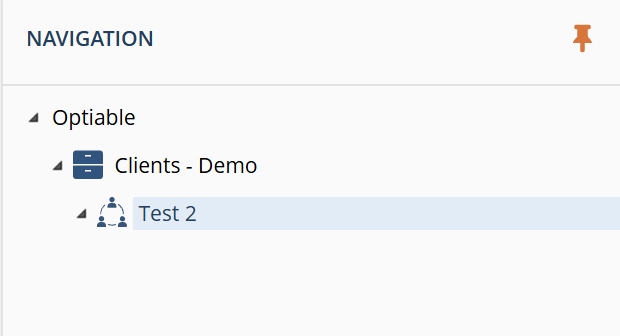
By default, an external user with only CollabSpace access has a narrow, purpose-built view. They see only the CollabSpaces they’ve been given access to. They never see a Recent Workspaces or Favorite Workspaces view, because as CollabSpace-only users, there’s no broader workspace structure for them to have “recent” or “favorite” activity in.
Once Enable External Sharing Outside CollabSpaces is turned on, that changes:
- Recent Matters and Favorite Matters views now appear for the external user, where they previously did not exist.
- The CollabSpace itself no longer appears in the Navigation Pane for that external user.
Before
After
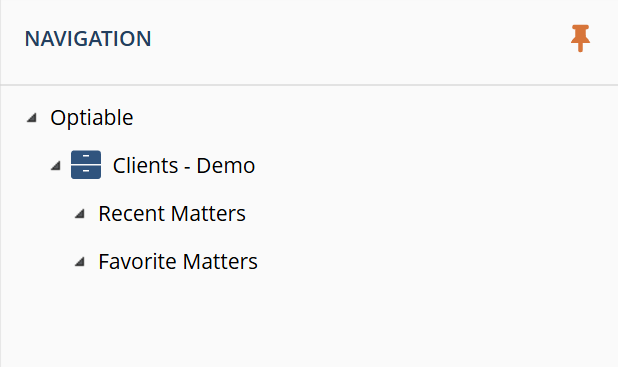
In other words, the setting doesn’t just add new views. It replaces the external user’s CollabSpace-centric navigation with a more general workspace-style view, and the CollabSpace they’re used to clicking into is no longer sitting there in the tree.
Why This Happens
This setting tells NetDocuments to treat external sharing more like it worked before CollabSpaces existed, where external users could be given direct access to workspaces and folders rather than being confined to a CollabSpace. The Navigation Pane that an external user sees reflects that shift: it opens up general workspace views like Recent and Favorite, because the external user’s access is no longer assumed to be CollabSpace-only.
Why This Matters More Than It First Appears
Under normal circumstances, when an external user is added to a CollabSpace, that CollabSpace is set as a favorite for them and shows up on their home page automatically. In that scenario, losing the CollabSpace from the Navigation Pane wouldn’t matter much, since the external user has a direct path to it from their home page regardless.
The problem is that this doesn’t always happen. Sometimes a CollabSpace isn’t set as a favorite for an external user, or doesn’t surface on their home page the way it’s supposed to. When that happens today, an external user still has a fallback: they can browse the Navigation Pane and find their CollabSpace listed there.
Once Enable External Sharing Outside CollabSpaces is turned on, that fallback goes away. If the auto-favoriting doesn’t happen for a given external user, they no longer have the Navigation Pane as a backup way to locate their CollabSpace. Their only remaining paths in are a direct link, a search result, or the home page favorite, all of which actually work as expected.
The Simple Fix: Email Them the Link
If an external user can’t find their CollabSpace, the fastest fix doesn’t require turning any settings back off. From inside the CollabSpace, open the dropdown next to the CollabSpace name and select Email link.
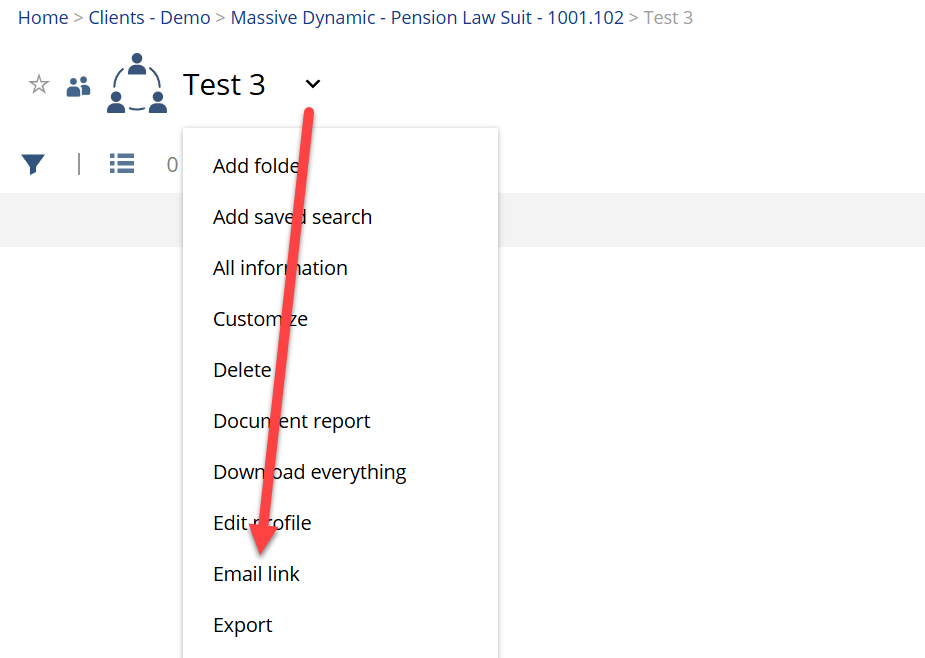
This sends the external user a direct link straight to that CollabSpace. Once they have it, tell them to:
- Bookmark it in their browser, or
- Favorite it in NetDocuments, so it reliably shows up on their home page going forward.
Either option gives them a dependable way back in that doesn’t depend on the Navigation Pane or on auto-favoriting having worked correctly in the first place.
The Bottom Line
Enabling external sharing outside CollabSpaces removes a fallback that external users have relied on when the automatic favoriting of their CollabSpace doesn’t work as intended. Knowing that ahead of time means a client’s call about a “missing” CollabSpace doesn’t turn into an unplanned troubleshooting session, or a client who genuinely has no way to reach their documents.
If you’re planning to enable this setting and want to think through how it will affect the external users you share documents with, schedule time with us or reach out through our contact page.