

We’ve written before about connecting Kofax Power PDF Advanced with NetDocuments and using NetDocuments with Kofax Power PDF Advanced for basic open-and-save actions. One quick note before we go further: Kofax Power PDF is now Tungsten Power PDF. It was Nuance before that. The name keeps changing, but the product — and its NetDocuments integration — keeps working the same way.
We’ve gotten a lot of questions lately about two specific features: combining files and Bates numbering. Both work with NetDocuments, but the workflow isn’t quite as obvious as a standard open or save. Here’s how to do it.
Opening a Single File from NetDocuments
This part is straightforward. Go to File > Open, and you’ll see the option to open directly from NetDocuments (listed as NetDocs). Select your document, and it opens directly in Power PDF, just as you’d expect.
Combining Files from NetDocuments
Combining multiple documents into one PDF is where people get stuck, because the NetDocuments option isn’t sitting in the obvious spot.
- Open the Combine Files tool.
- Click Add, then Open File.
- Instead of browsing your local drive, choose Open from DMS, then select NetDocuments.
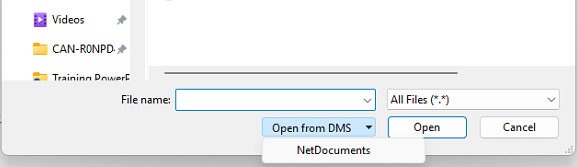
- Select the files you want to combine and click Open.
- Repeat as needed to add all the documents you want in the combined PDF.
Once your files are combined, save. This is the one hiccup in the process: Power PDF doesn’t let you save the combined file directly to NetDocuments. It forces a local save first.
The workaround is simple:
- Save the combined PDF to your desktop (or another local folder).
- Open that file back up in Power PDF.
- Use File > Save As, choose NetDocuments, and save it into the correct location.
It’s an extra step, but it gets the combined file back where it belongs.
Bates Numbering from NetDocuments
Bates numbering follows the same pattern as combining files, and it’s one of the questions we hear most often from firms using NetDocuments.
- Open the Bates Numbering tool and click Add.
- Click Add Files, then Open from DMS, then NetDocuments.
- Select all the documents you want stamped and click Open.
- Set up your Bates numbering settings on the left side of the window as you normally would.
- Click OK.
From here, Power PDF checks out each document, applies the Bates stamp, and — unlike the combine files workflow — automatically checks the stamped documents back into NetDocuments. You’ll see the progress noted in the bottom right corner as it processes each file.
The Bottom Line
Tungsten (Kofax, Nuance — whatever it’s called by the time you read this) Power PDF now handles combining files and Bates numbering directly against NetDocuments, not just basic opening and saving. Combining files still requires a local save-and-reopen step to get the result back into NetDocuments, but Bates numbering hands the finished documents right back to NetDocuments on its own. Either way, you no longer need to bounce documents out to your desktop and back in manually just to get this work done.