

You’ve switched to NetDocuments. Worldox is gone. But every time you open Word or Excel, the Worldox save dialog still appears. What’s going on?
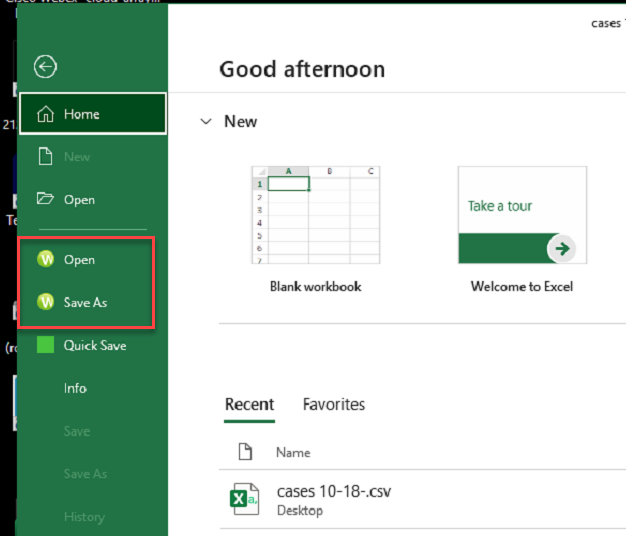
The answer almost always comes down to a leftover template file in a startup folder that Word or Excel loads automatically when it opens. Removing it takes less than two minutes — and you don’t need IT to do it.
Why This Happens
Worldox integrates with Microsoft Office by placing a template file into Office’s startup folders. Every time Word or Excel launches, it scans those folders and loads whatever it finds — including old Worldox templates that were never removed.
How to Remove the Worldox Template from Word
Close Word completely before proceeding.
- Open File Explorer.
- Click in the address bar at the top and paste in the following path, then press Enter:
%appdata%\microsoft\word\startup - Look for any file that starts with WD and delete it.
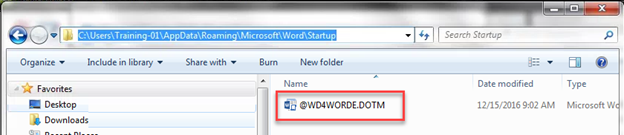
- Reopen Word. The Worldox save dialog should no longer appear.
How to Remove the Worldox Template from Excel
Close Excel completely before proceeding.
- Open File Explorer.
- Click in the address bar at the top and paste in the following path, then press Enter:
%appdata%\microsoft\excel\xlstart - Look for any file that starts with WD and delete it.
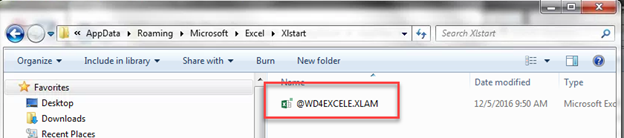
- Reopen Excel. The Worldox save dialog should no longer appear.
Can’t Delete the File?
If the file won’t delete, Word or Excel is likely still running in the background. Restart your computer and — before opening Word or Excel — go back to the startup folder and delete the file. Then open Word or Excel as normal.