

NetDocuments and Anthropic recently announced a collaboration built on Anthropic’s Model Context Protocol (MCP), which allows Claude to connect directly to your NetDocuments repository. It’s a significant development — but it requires an ndMAX Enterprise subscription and the MCP connector setup.
What many firms don’t realize is that you don’t need any of that to start using Claude with NetDocuments today.
At Optiable, we use Claude alongside NetDocuments regularly in our own work. The four approaches below are available to anyone with a Claude account — no special NetDocuments tier, no connector configuration required. We’ll also cover the data privacy considerations every firm needs to understand before getting started.
Option 1: Use Claude Inside Microsoft Word
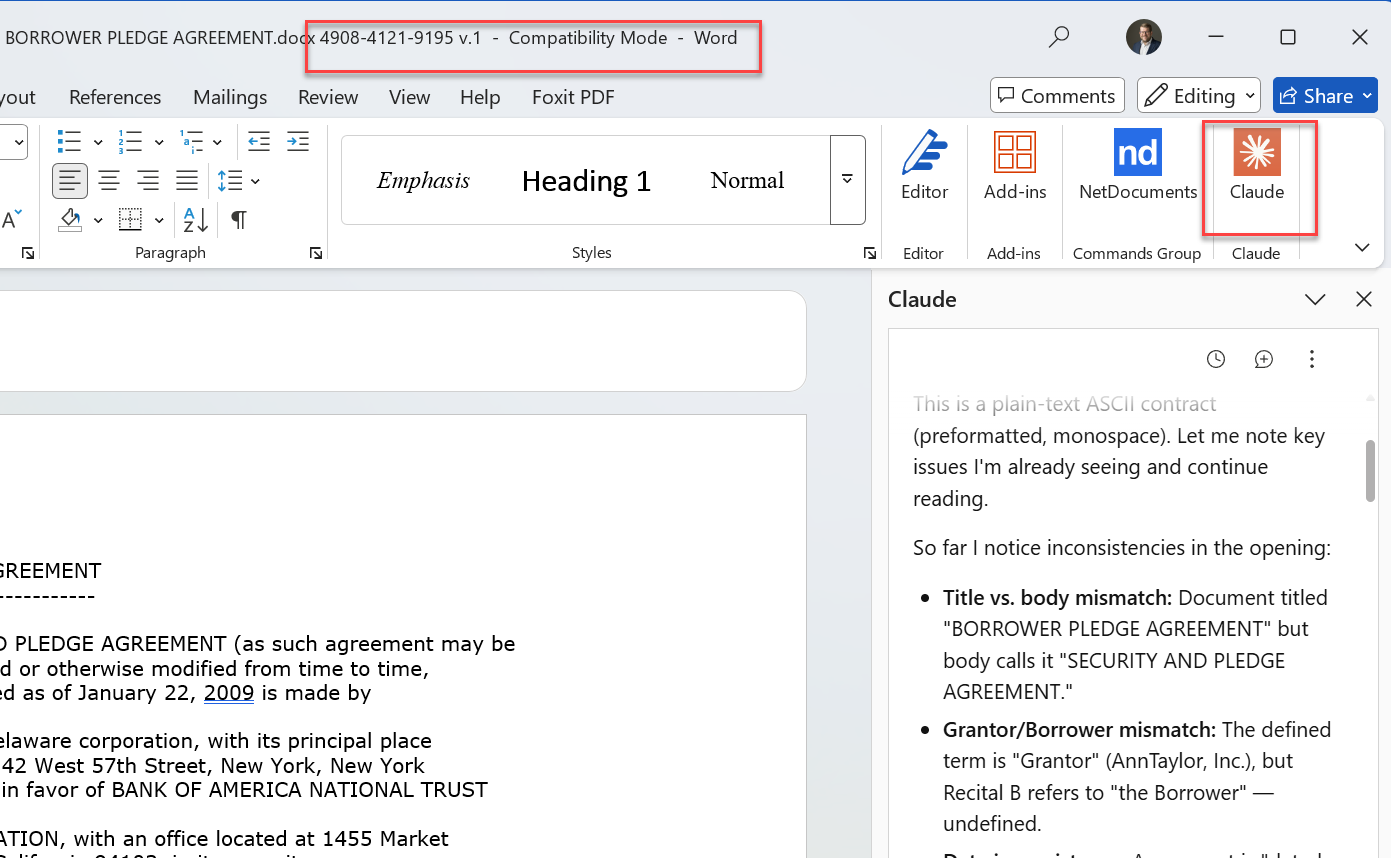
If your attorneys spend most of their time in Word, this is the most natural starting point. Claude is available as an integration within Microsoft Word, so you can access it without leaving the document you’re working on.
How it works:
- Open a document from NetDocuments in Word as you normally would.
- Launch the Claude integration from the Word sidebar or ribbon.
- Ask Claude to summarize, redline, rewrite, or draft — right there in context.
What you need:
- A Claude account (Free, Pro, or Team)
- Microsoft Word with the Claude add-in installed
- NetDocuments — any tier
This works especially well for drafting engagement letters, reviewing contract language, or preparing a first markup of a template. Because you’re already in Word, there’s no extra friction.
Option 2: Upload Documents to Claude via the NetDocuments Browser Extension
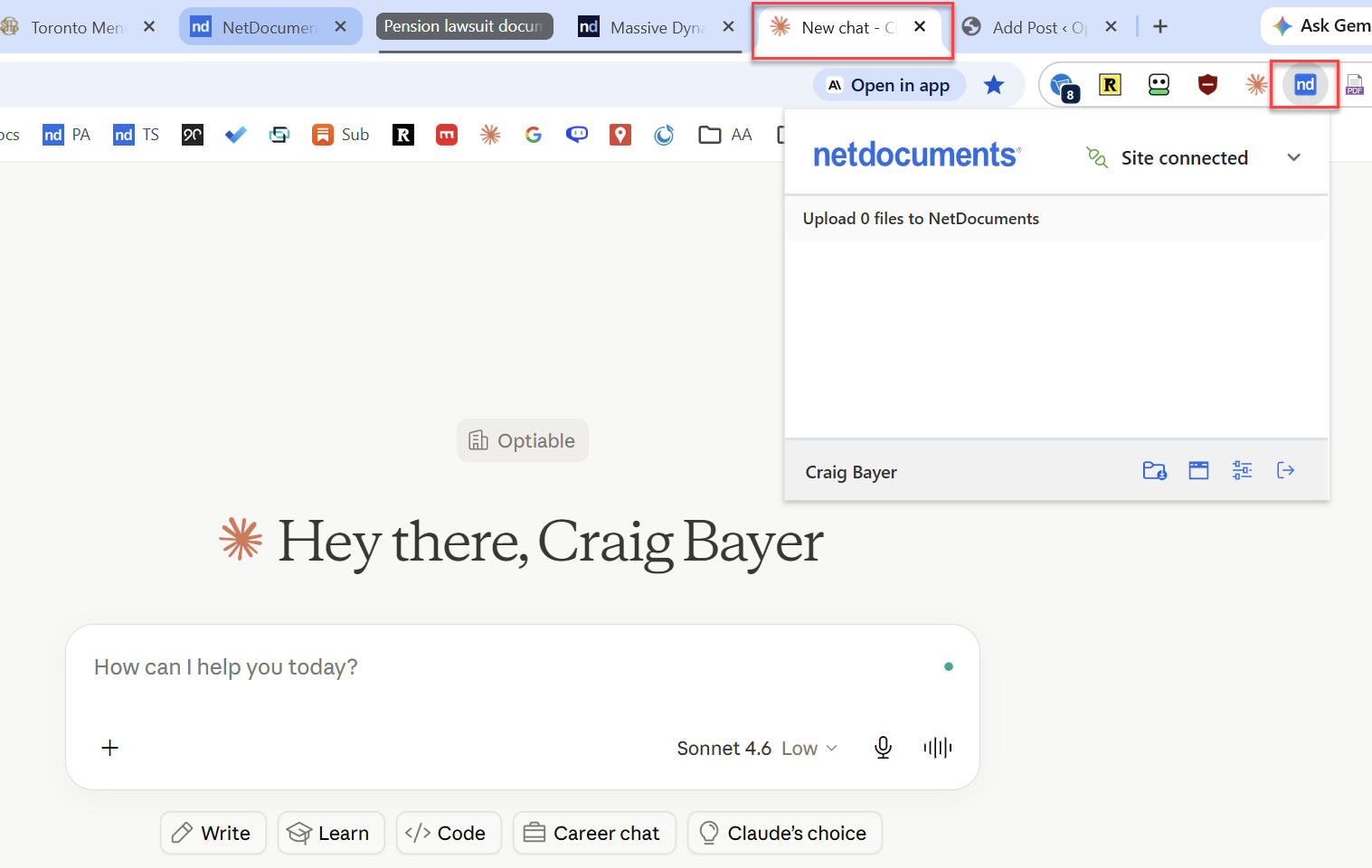
The NetDocuments browser extension makes it easy to send specific documents directly from NetDocuments into a Claude conversation. This is a good approach when you want to ask Claude questions about a particular document or use it as context for drafting something new.
How it works:
- Browse to a document or matter in NetDocuments in your browser.
- Use the NetDocuments browser extension to send the document to Claude.
- Ask Claude questions about the document or use it as the basis for a new draft.
What you need:
- A Claude account (Free, Pro, or Team)
- The NetDocuments browser extension is installed
- NetDocuments — any tier
This works well for ad hoc analysis — pulling a lease agreement or deposition transcript and asking Claude targeted questions, without setting up anything more complex.
Option 3: Use Claude in Chrome to Query NetDocuments in Your Browser
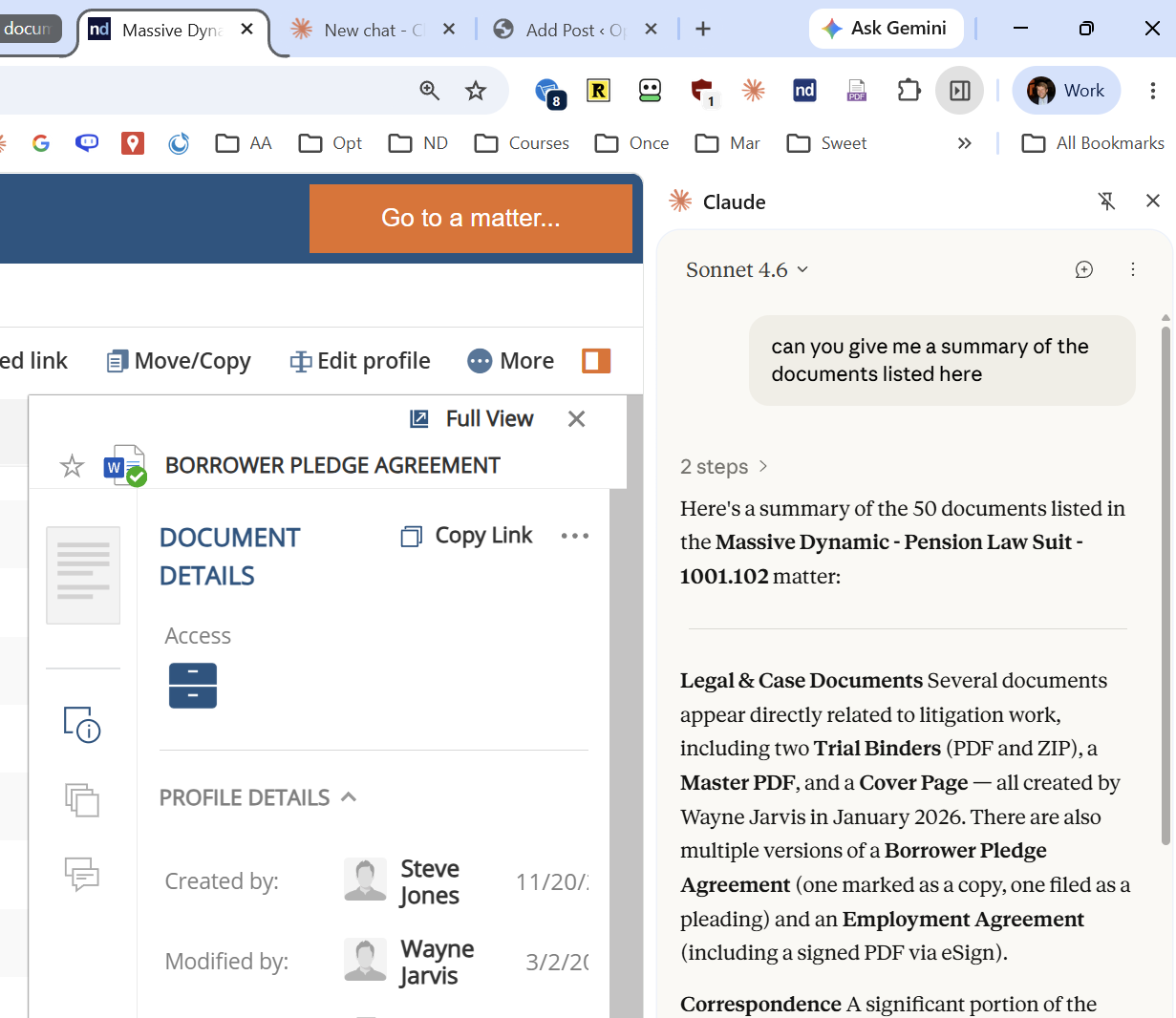
Claude in Chrome is a browser extension from Anthropic that embeds Claude directly into your browsing experience. When you’re working in NetDocuments in your browser, Claude can see what’s on your screen and help you work with that content — searching, summarizing, drafting — without you having to manually copy and paste anything.
How it works:
- Install the Claude extension for Chrome from the Chrome Web Store.
- Open NetDocuments in your browser and navigate to a matter or document.
- Open Claude in Chrome from the extension and ask it about what you’re viewing — Claude can see the page and work with the content directly.
What you need:
- A Claude account (Free, Pro, or Team)
- The Claude in Chrome extension (currently in beta from Anthropic)
- NetDocuments — any tier
This is a flexible option for attorneys who spend a lot of time working in NetDocuments through the browser and want quick access to Claude without switching applications.
Option 4: Use One Step Save to Skip the Downloads Folder
The first three options get a document from NetDocuments into Claude. Getting Claude’s work back is a separate exercise, and it’s the part nobody mentions.
Without One Step Save, it goes like this: Claude produces the revised document, you click download, it lands in your Downloads folder, you go find the original in NetDocuments, add a version, browse back to the downloaded file, and upload it. Then you delete the copy sitting in the Downloads folder. That works—you end up with a proper new version—but it’s six steps and a detour through the local file system for something that should be a single save.
One Step Save removes the detour.
Step 1: Attach the Document From NetDocuments
With One Step Save running, clicking Attach in Claude opens the NetDocuments picker instead of your local file system. Pick the document out of the Workspace, and it goes straight into the chat. This also works in the Claude desktop app, which the other three options don’t.
Step 2: Click Download in Claude
NetDocuments pops up automatically. No browser settings to change, no file to go find afterward.
Step 3: Save It as a New Version of the Original
Select the original document and save Claude’s output as a new version of it. Same Workspace, same profile, same version history — you just got there without the round trip through Downloads.
What This Doesn’t Change
One Step Save moves the document more conveniently. It does not keep it inside NetDocuments. Your contract still goes to Anthropic’s systems for processing, and everything in the privacy section below applies here exactly as it does to the first three options.
One Step Save is a paid add-in from Legality Software, not a NetDocuments feature. If your firm already runs it for WordPerfect or PDF work, the Claude integration is already there — nothing else to buy or install. If you’ve never heard of it, I’ve covered what One Step Save does, which applications it supports, and what it costs in a separate post.
What About the NetDocuments MCP Connector?
The four options above are separate from the NetDocuments MCP connector announced in NetDocuments’ collaboration with Anthropic. The MCP connector is an advanced integration that allows Claude to actively search and retrieve documents from your NetDocuments repository on your behalf — you describe what you need, and Claude finds it.
| Options 1–4 (This Post) | MCP Connector | |
| NetDocuments tier required | Any | ndMAX Enterprise |
| Setup complexity | Low — install an extension or add-in | Admin configuration required |
| How documents get to Claude | You open or send them | Claude retrieves them for you |
| Best for | Individual document tasks | Multi-document workflows across the repository |
Both approaches have their place. The options in this post let you get started immediately, with no special requirements. The MCP connector is worth exploring when you’re ready for a deeper, more automated integration with your full document repository.
An Important Note on Data Privacy: Your Documents Are Leaving NetDocuments
Whether you use Option 1, 2, 3, or 4 — or the MCP connector — there is a data privacy consideration every firm should understand before getting started.
When document content is sent to Claude, it is transmitted to Anthropic’s systems for processing. This is fundamentally different from the NetDocuments AI Assistant, which keeps all processing within the NetDocuments platform.
| NetDocuments AI Assistant | Claude (any method) | |
| Where AI runs | Inside the NetDocuments platform | On Anthropic’s external systems |
| Document data leaves NetDocuments? | No | Yes — content is sent to Anthropic |
| Suitable for highly sensitive matters? | Yes | Firm policy decision required |
This doesn’t mean Claude is unsafe for legal work — Anthropic has strong security and privacy practices. But your firm should make a deliberate policy decision about which matters and document types are appropriate to use with an external AI tool.
Firms with data residency requirements, client agreements that restrict third-party data sharing, or sensitive matters where transmission outside the platform is a concern should review those obligations before using Claude with client documents.
If keeping document content entirely within NetDocuments’ environment is a requirement, the native NetDocuments AI Assistant is the right tool for that use case.
Getting Started
All four options are available today with a standard Claude account. The Claude Word add-in is available from Microsoft AppSource. The Claude in Chrome extension is currently in beta from Anthropic. The NetDocuments browser extension is available from your NetDocuments account.