

Every so often, a firm will notice the dates in NetDocuments look “off.” A document filed on March 4 shows as 04/03/2025 instead of 03/04/2025, or the date sent in an email preview reads dd/mm/yyyy when you expected mm/dd/yyyy. In a profession where a misread date can mean a missed deadline, that’s understandably alarming — especially for a U.S. firm.
The good news: your data is fine. What you’re seeing is a display setting, and it lives in your web browser rather than in NetDocuments itself.
What’s actually happening
NetDocuments is a browser-based application. Anywhere it shows you a date — a list view, the document details pane, or the preview of an email — it asks your browser what regional format to use and renders the date accordingly. Your browser, in turn, decides that based on its preferred-language list.
If the language at the top of that list is set to a region that uses day-first dating — English (United Kingdom), for example — every date in NetDocuments will display as dd/mm/yyyy.
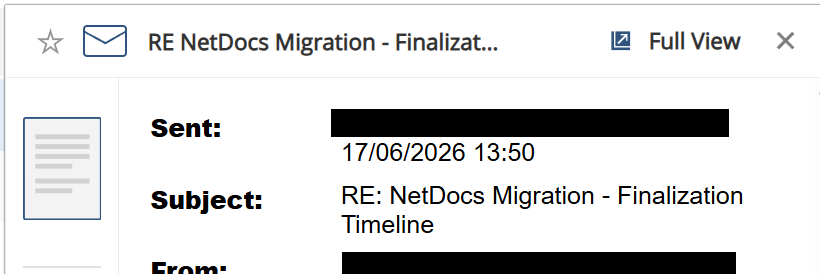
Switch the top language to English (United States), and the same dates display as mm/dd/yyyy. Nothing about the documents changed; only the way the browser formatted the date for the screen.
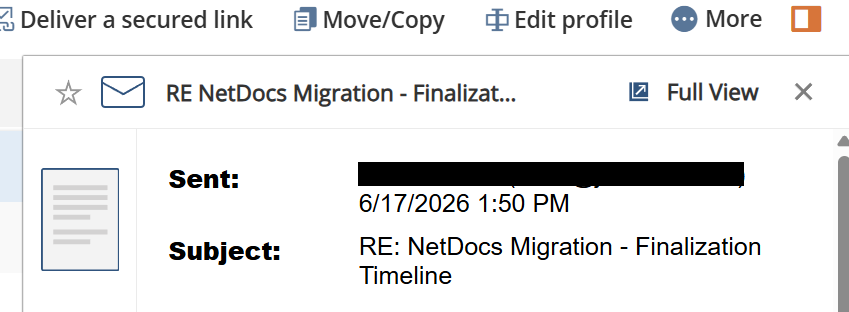
A common assumption is that NetDocuments is pulling the format from Outlook, or that a date got “imported wrong” from another system. In practice, the format you see is determined by the browser’s locale when the page renders. That’s also why the same NetDocuments cabinet can look different on two computers in the same office — one machine simply has a different language at the top of its browser list.
Your dates aren’t stored incorrectly
This matters, so it’s worth stating plainly: NetDocuments stores dates as true date values, not as text. They sort chronologically and filter correctly regardless of how they’re displayed. The day-first display is cosmetic. Changing your browser’s regional setting corrects what you see on screen without touching anything in the repository.
That said, a misleading display is still worth fixing. Anyone reading a list view should be able to trust the dates at a glance, and a consistent format across the firm removes a small but real source of confusion.
Fixing it in Google Chrome
- Click the three vertical dots in the top-right corner of Chrome and choose Settings.
- Select Languages in the left-hand menu.
- Click Add languages and add the region whose date format you want. For U.S.
mm/dd/yyyy, add English (United States). Fordd/mm/yyyy, add English (United Kingdom). - Click the three dots next to that language and select Move to the top.
- Restart the browser so the change takes effect.
Fixing it in Microsoft Edge
- Click the three horizontal dots in the top-right corner and choose Settings.
- Select Languages from the left-hand menu.
- Under Preferred languages, add the region you want and use the three dots to move it to the top of the list.
- Restart the browser.
After restarting, refresh your NetDocuments page and the dates will display in the format you selected — in list views and in the email preview alike.
A note on consistency
If date formatting has caused confusion at your firm before — whether in NetDocuments, a billing system, or a spreadsheet — standardizing the browser locale across workstations is a simple way to keep everyone viewing dates consistently. It’s the kind of small configuration detail that’s easy to overlook during a rollout but pays off in day-to-day clarity.
If you’d like help reviewing display settings, list-view formats, or anything else in your NetDocuments environment, reach out to us or book a consultation.