

NetDocuments is a cloud-based document management system, but it still relies on a small desktop application to work seamlessly with Microsoft Office. On Windows, that’s ndOffice. On a Mac, it’s ndClick. These tools handle the behind-the-scenes work of checking documents in and out and automatically saving changes back to NetDocuments.
But what if you’re on a computer where that software isn’t installed — a loaner laptop, a client’s machine, or a personal device you don’t want to load software on? You still have two solid options.
Option 1: Download and Manually Upload
This approach works for any file type and any browser.
When you click on a document in NetDocuments, it downloads to your computer.
Step 1: Locate the Document
After downloading, find your document, usually in the Downloads folder.

Step 2: Enable Editing
When opening the file, you might need to click ‘Enable Editing’ to make changes.
Step 3: Saving Changes
Once edits are made, hit ‘Save’ and close the document.
Step 4: Manual Check-In
After editing, manually check the document back into NetDocuments by selecting the file with the green check mark.
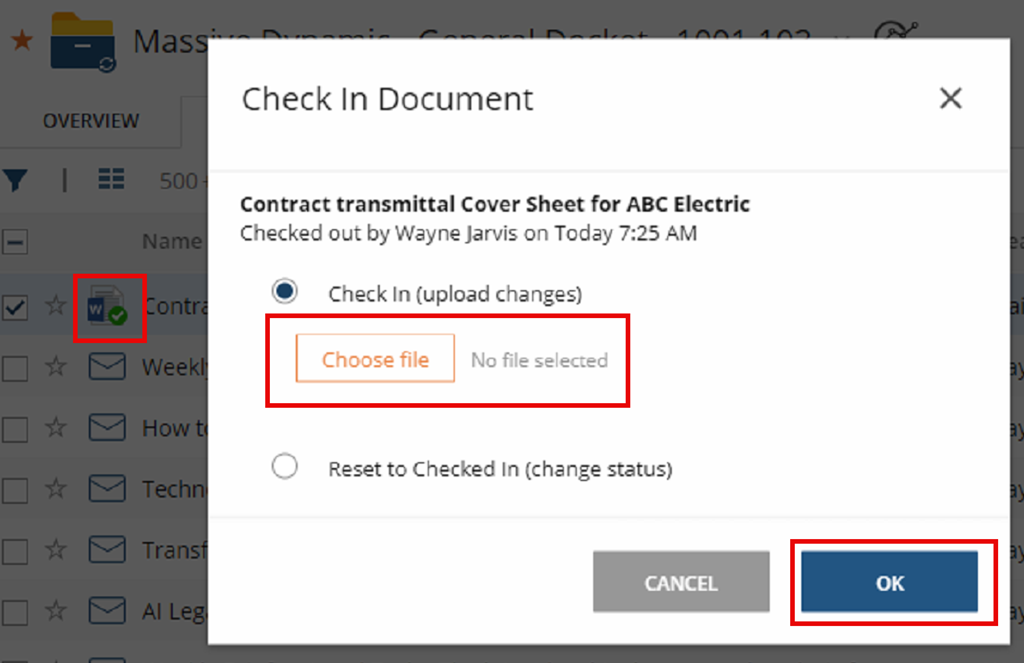
Important: If you skip the check-in step, your changes stay on your local machine and won’t be saved to NetDocuments.
Option 2: Use Microsoft Online
For Word, Excel, or PowerPoint files, this is the easier path.
Step 1: Right-Click Option: For Word, Excel, or PowerPoint files, right-click and select ‘Open in Word Online’.
This method eliminates the need for manual check-ins, as changes are automatically saved back to NetDocuments.
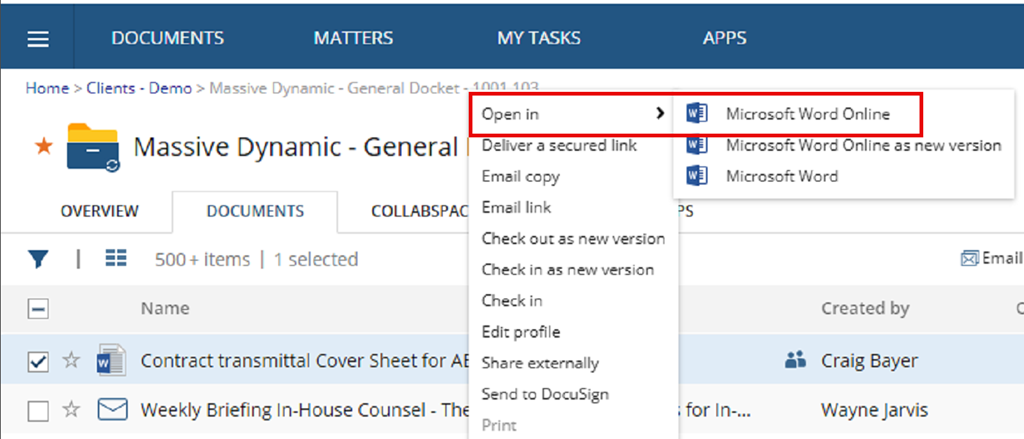
Step 2: Close the Browser tab when you are done making changes

Which Option Should You Use?
Use Office Online (Option 2) whenever possible — it’s faster, simpler, and eliminates the risk of forgetting to check a document back in. Fall back to Option 1 when you need the full power of the desktop Office application or when you’re working with a file type that Office Online doesn’t support.