

When you receive a large batch of exported documents — whether from a migration, a client delivery, or a vendor — they often arrive as multiple ZIP files. Windows can open ZIP files natively, but it can only handle them one at a time. 7-Zip solves that problem by letting you select all your ZIP files at once and extract them in a single operation.
Beyond batch extraction, 7-Zip offers better compression than Windows’ built-in tool, supports a wider range of archive formats (including .7z, .tar, .gz, and .rar), and is completely free and open source. If you’re doing any kind of document migration work, it’s worth having installed.
Step 1: Go to 7-Zip.org
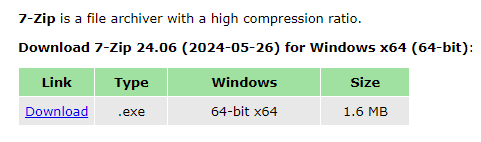
Go to 7-zip.org and download the installer for your version of Windows (most users should choose the 64-bit .exe).
Step 2: Install 7-Zip
Run the installer and follow the prompts. The default options are fine for most users.
Step 3: Select All Your ZIP Files
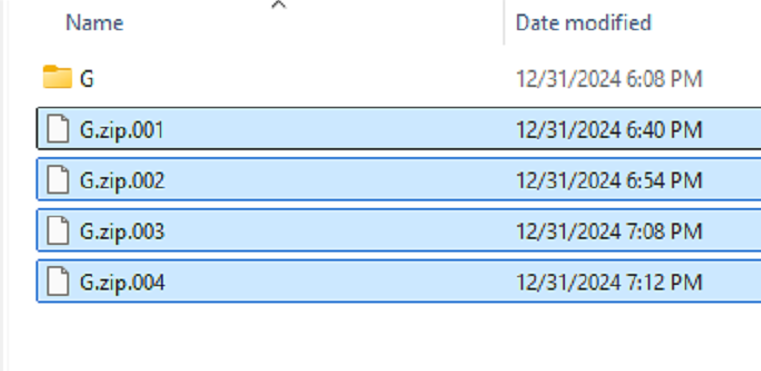
Navigate to the folder containing your ZIP files. Click the first file, then press Ctrl+A to select all files in the folder — or hold Shift or Ctrl and click to select specific files.
Step 4: Extract Using 7-Zip
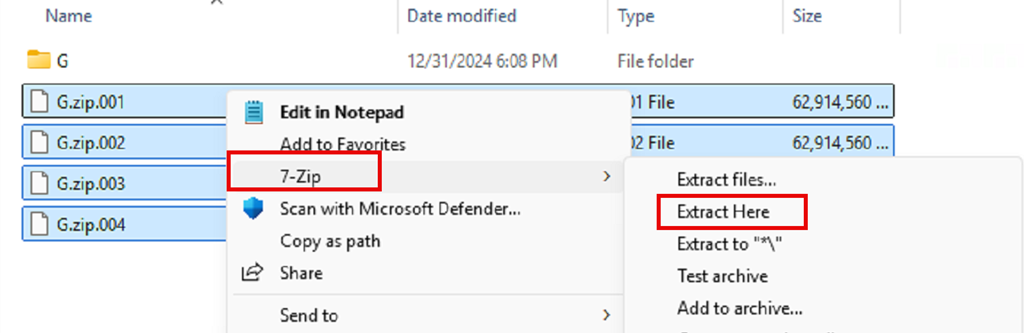
Right-click on the selected files, hover over 7-Zip in the context menu, and choose Extract Here. 7-Zip will extract the contents of each ZIP file into the same folder. If you’d prefer each archive to extract into its own subfolder, choose Extract to “*\” instead.
That’s it. What would take dozens of manual extractions is done in seconds. If you’re prepping files for a NetDocuments import or staging documents for a migration, this is a quick step worth building into your workflow.
Have questions about document migrations or working with large file batches? Contact Optiable — we’re happy to help.