

When someone at your firm changes their name—whether due to marriage, divorce, or a legal name change—updating that name in NetDocuments is not as simple as editing a single field. There are several places where a name lives in the system, and each one behaves differently. Some changes are automatic, some are instant, and a few can’t be changed at all. If you go in without a plan, you’ll create confusion in search results and document histories that can take real effort to untangle.
This post walks through each piece of the puzzle, so you know exactly what to do—and what to expect—when a name change comes across your desk.
Update the Name in NetDocuments Administration
Standard (Non-SSO) Users
For firms that do not use SSO, repository administrators cannot change a user’s display name on their behalf. The user has to do it themselves. They’ll need to log in, go to their account Settings, and update their name there. As the admin, your role is to point them in the right direction and let them know that the change is their responsibility. This article explains how to do that.
Once the user saves the update, the new name will appear in the NetDocuments interface going forward—on any documents they open, save, or modify.
SSO/Federated Users: Coordinate with IT
If your firm uses Single Sign-On (SSO) or federated authentication—common at firms using Microsoft 365 or Google Workspace for login—the name in NetDocuments is pulled from your identity provider (Azure AD, Okta, etc.) and is not managed directly in NetDocuments.
For these users, the name change needs to happen at the source: the identity provider. Once updated there, NetDocuments will reflect the new name on the user’s next login. This is an IT task, so loop in your IT administrator early. NetDocuments has a support article specifically covering name and email changes for federated SSO users.
What Changes—and What Doesn’t—in Document History
This is the part most admins don’t anticipate. Updating the user’s name in the Admin Console changes how their name appears going forward, but it does not rewrite history.
NetDocuments stores the Created By and Last Modified By fields as text at the time each action occurred. If Craig Bayer created a document last year, that document still shows “Craig Bayer” as the author—even after the account is updated to Craig Burns. The system does not go back and retroactively update those records.
This is worth explaining to the user so they aren’t alarmed when they see their old name still attached to older documents.
The Search Problem: Using OR to Bridge the Name Gap
The Created By and Last Modified By fields in NetDocuments Advanced Search behave like text fields. When a user opens Advanced Search and clicks “Me”, NetDocuments populates the search with their current name. It will find everything they’ve touched since the name was updated—but nothing from before.
To find documents across both names, the user needs to run an OR search:

- Created By: “Craig Bayer OR Craig Burns”
- Last Modified By: Craig Bayer OR Craig Burns
The same logic applies to both fields independently. Make sure the user understands this before their name change goes live. It’s a simple workaround once you know about it, but if they’re not expecting it, they may think documents have gone missing.
Profile Attributes: Author and Typist Fields
If your firm migrated from a previous document management system—Worldox being the most common—you may have profile attributes called Author and Typist (or similar fields) that were carried over during the migration. These are lookup lists, and each entry has two components:

- Key: The underlying identifier (e.g., C. BAYER)
- Description: The display name the user sees (e.g., Craig Bayer)
The key is permanently set when the attribute is created and cannot be changed. You cannot rename C. BAYER to C. BURNS. What you can do is create a brand new attribute entry with the correct key and name, then reassign all existing documents to it. NetDocuments supports this in bulk—up to 100,000 records at a time.
Here is how to handle it:
Step 1: Create the New Profile Attribute Entry
Go to Admin > Profile Attributes, find the relevant attribute (Author, Typist, or whatever your firm named it), and add a new entry with the correct key and description reflecting the new name.
Step 2: Search for All Documents Tagged with the Old Entry
Go into NetDocuments and run an Advanced Search using the old author or typist profile attribute value. This will pull up all documents currently coded to the old name.
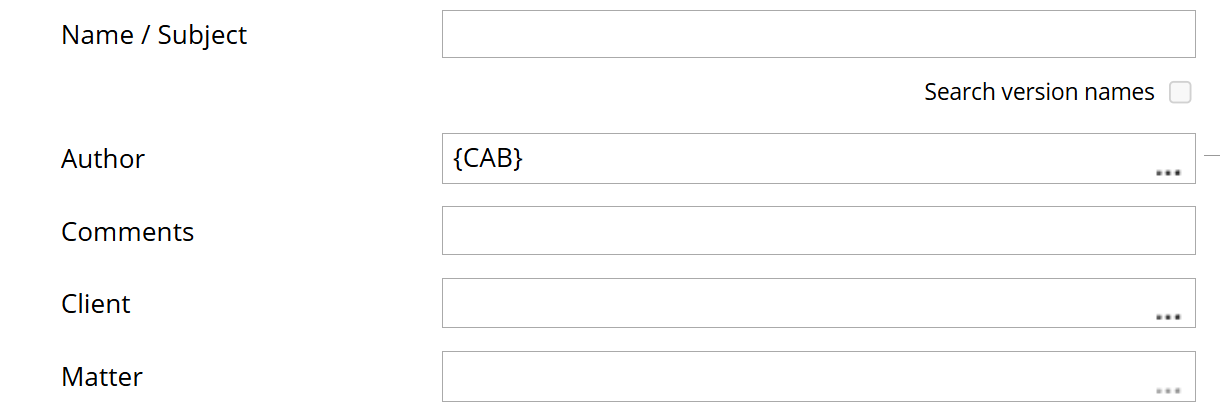
Step 3: Open Edit Profile from Search Options

In the search results, go into the search options and choose Edit Profiles. This allows you to make a profile attribute change across all documents in the result set at once.
Step 4: Reassign to the New Attribute Entry
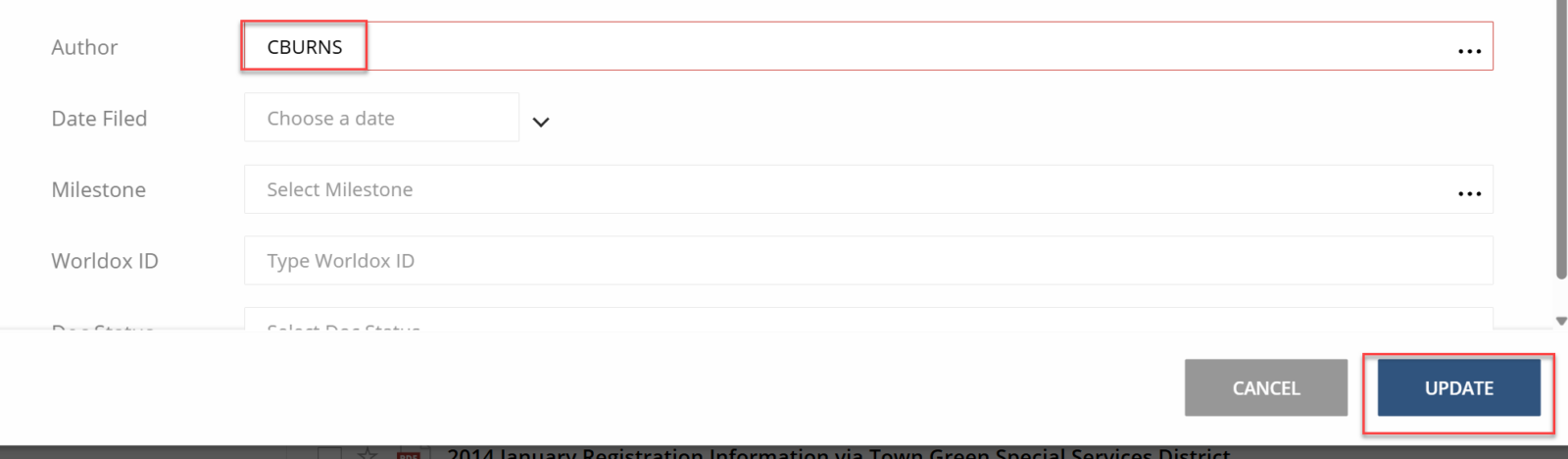
Select the Author or Typist field and assign it to the new profile attribute entry you just created. Click Update. NetDocuments will update all matching records—up to 100,000 at a time—replacing the old entry with the new one.
Once complete, the old attribute entry can be deleted; documents will now reflect the correct name, and the old key will no longer be in active use.
Quick Reference Summary
Here’s a consolidated view of what changes and what doesn’t:
- Non-SSO users: Must update their own name in their account Settings; admins cannot do this for them
- Created By / Last Modified By on existing documents: Does not change; reflects the name at the time of the action
- Advanced Search (Created By / Last Modified By): Will only find documents under the current name; use OR to search both names
- Profile Attribute key: Cannot be changed; create a new entry with the correct key and use Edit Profile in search results to reassign documents in bulk
- SSO/federated users: Name change must be made in the identity provider, not directly in NetDocuments
Name changes are one of those tasks that look simple on the surface but have a few important nuances in NetDocuments. Getting ahead of the search issue and profile attribute limitation—before the user runs their first post-change search—will save you a support call.
If you have questions about your firm’s specific configuration or need help with a migration that brought over custom profile attributes, reach out to Optiable. We’ve worked through this scenario more times than we can count.