

If you use NetDocuments and have noticed that you’re getting prompted to save outgoing emails even after you’ve already selected a filing location, you’re not alone. This is a common issue that comes up when two separate NetDocuments tools are both configured to remind you to file, and they end up stepping on each other.

Here’s what’s happening and exactly how to fix it.
Two Tools, One Problem
NetDocuments offers two different Outlook integrations, and it’s easy to have both installed at the same time:
- ndMail — A separate program that installs alongside Outlook and adds a filing panel directly inside your compose window.
- NetDocuments M365 Add-in — A Microsoft 365 add-in for Outlook that provides similar functionality, including its own “Prompt to File” setting.
Both tools include a feature that alerts you when you send an email without choosing a filing location. The problem: if you’ve enabled this setting in both tools, you’ll get prompted even when you have selected a location. The two prompts don’t align, so you end up with a confusing double alert that erodes trust in the feature over time.
The Fix: Keep the Prompt in ndMail Only
Our recommendation is straightforward: enable the “Prompt to File” feature in ndMail, and leave it turned off in the M365 add-in. ndMail’s implementation is more tightly integrated with the compose workflow and less likely to cause false alarms.
How to Enable the Prompt in ndMail
Setting this up in ndMail is a two-step process:
- Step 1: In the ndMail panel inside Outlook, click the gear icon in the upper right corner to open Settings.
- Step 2: Check the box next to “Prompt to file outgoing messages” and click OK.
Once enabled, the ndMail panel will flash red if you try to send an email without selecting a filing location. You can then either choose a workspace to file it, or click Send again to intentionally skip filing.
For full details and screenshots, see our guide: How to Get NetDocuments to Prompt You to Save Outgoing Emails.
How to Check (and Disable) the Prompt in the M365 Add-in
The NetDocuments M365 Outlook add-in has its own “Prompt to File” option. To avoid the double-prompt issue, make sure this setting is turned off:
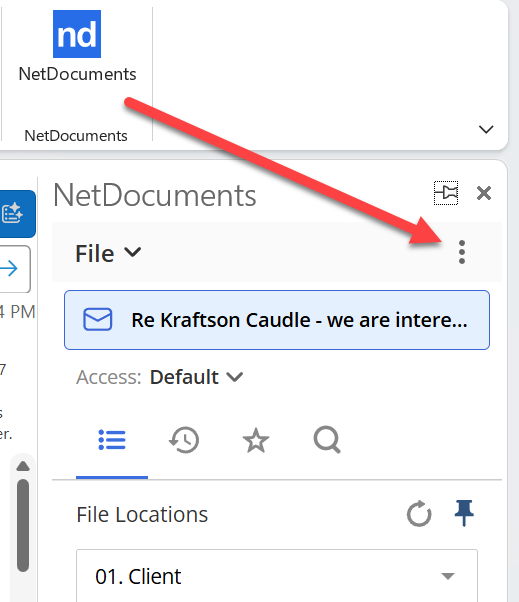
Step 1: Open Outlook, locate the NetDocuments M365 add-in panel, and go to the …
Step 2: Click Settings
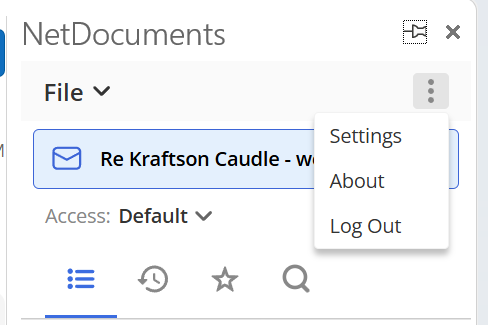
Step 3: Ensure the “Prompt to File” option is disabled.

NetDocuments’ documentation on this setting is available here: M365 Outlook Add-in – Prompt to File.
Why This Happens
Both tools were designed to solve the same problem — making sure attorneys don’t accidentally send client emails without filing them. But because they operate independently, enabling the prompt in both creates a situation where neither tool knows what the other has done. The result is that alerts fire even after a filing location has already been chosen, which is confusing and encourages users to dismiss prompts without reading them.
Keeping the prompt active in just one place — ndMail — gives you the safety net you want without the noise.
Need Help?
If you’re not sure which settings are active in your environment, or if you’d like help reviewing your ndMail and M365 add-in configuration, Optiable can help. We work exclusively with law firms on NetDocuments implementations and support, and this is exactly the kind of issue we address in our regular office hours and support sessions.
Reach out at optiable.com/contact or give us a call at 1-800-399-0852