

Sooner or later, you’re going to need a NetDocuments support ticket. Something stops working in Word, a user can’t log in, a profile field isn’t behaving.
Before you can open a ticket, you need an account on the NetDocuments support site. Here’s how to get one — plus the approval step in the middle that you should know about before you start.
First, Understand That This Is a Separate Login
Your NetDocuments Community account — the one you use to open support tickets — is not your NetDocuments login. Different username, different password, different system.
NetDocuments is explicit about this: Community access is independent of the NetDocuments platform, and there is no correlation between the two. A repository administrator may also be a Community Administrator, but one does not grant the other.
So don’t assume that because you run NetDocuments at your firm, you can open a ticket. You may not be able to yet.
Step 1: Go to the NetDocuments Tech Support Site
https://netdocuments.force.com/NetDocumentsSupport/s/
Step 2: Click Not a member

Step 3: Fill out your Information

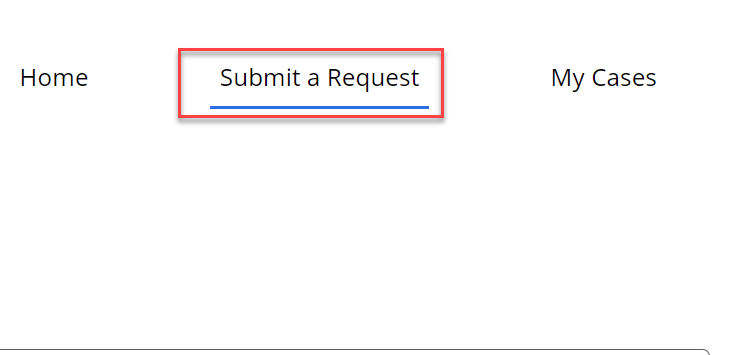
Step 4: Click Submit a Request
Now You Wait for Someone at Your Firm to Approve You
Here’s the part that catches people off guard.
Your registration request does not go to NetDocuments for approval. It goes to a person at your own firm that NetDocuments calls a Community Administrator. That person gets an email asking them to accept or reject you, and until they act on it, you can’t open a ticket.
If they accept you, you get a link to set your password, and you’re in. If they reject you, you get a notice saying so.
There’s a fallback, too: if your firm has no Community Administrator assigned, NetDocuments notifies the primary contact on your account instead.
Someone at Your Firm Got That Email
This is the part worth being clear about.
You can’t tell from the outside whether your firm has Community Administrators assigned or not. Odds are it does. But it doesn’t actually matter which situation you’re in, because either way the notification went to a real person at your firm — an administrator if one exists, your primary contact if not.
The email isn’t disappearing into nowhere. It’s sitting in somebody’s inbox. The only question is whose.
Who Is That Person?
Honestly? I don’t know, and I can’t find out for you.
The role is assigned on your firm’s NetDocuments Community account, and I have no visibility into that. You also can’t look it up yourself while you’re the one waiting for approval, because the page where that information lives — Account Management — requires a Community login to open. And your NetDocuments repository rights don’t help, because the Community is a separate system.
What I can tell you is who it isn’t.
It Is Not Optiable, and It Is Not Your IT Company
Optiable is never your Community Administrator. Neither is your outside IT company nor your managed services provider.
The role must belong to someone at your firm and be on your firm’s NetDocuments account. NetDocuments doesn’t assign it to outside consultants or vendors in place of a firm employee.
So when your registration is sitting there unapproved, we can’t clear it for you, and neither can your IT provider. The person who can is at your firm.
What to Do When the Approval Doesn’t Come
Two things actually work here.
Have someone with Community access check the Account Management page. If anyone at your firm can open support tickets today, they can visit https://support.netdocuments.com/s/account-management to view the full contact list for your account—including the primary contact and who has the Administer Account ability. That answers both questions at once: whether administrators are assigned and who they are. Ask them to look.
Call NetDocuments and ask them directly. If nobody at your firm has Community access, this is your answer. NetDocuments can see whether your account has Community Administrators assigned and who they are. They can tell you who your primary contact is and reassign the role to someone who currently works at your firm.
The Number to Call
801.226.6882
That’s the NetDocuments main line — ask for technical support, and tell them you need to know who the Community Administrator is on your account, or that you need it reassigned.
I’d like to be more helpful on this one, but it’s genuinely outside my scope. My company is Optiable, not NetDocuments. I can’t approve your account, I can’t see who your Community Administrator is, and I can’t change it.
One more thing worth knowing: Community accounts deactivate after 18 months of non-use. If you register, never open a ticket, and come back much later during an actual problem, you may find yourself locked out. It’s an easy fix—reset your password at https://support.netdocuments.com/s/login/ForgotPassword—but it’s better to know now than to discover it in the middle of an emergency.
The Bottom Line
Registering for NetDocuments tech support takes a couple of minutes. Getting approved depends on someone at your own firm — a Community Administrator, or your account’s primary contact if no administrator has been assigned. You probably don’t know which, and you don’t need to. Someone there got the email.
Set it up before you need it. Name a couple of Community Administrators, tell them what they’re responsible for, make sure your primary contact still works at the firm, and turn on “View All Account Support Cases” for whoever handles your technology.
And if you’re stuck right now with nobody to approve you, call NetDocuments at 801.226.6882 and ask.