

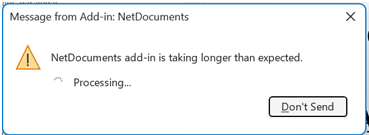
If your firm has started receiving tickets about an Outlook error message that says the NetDocuments add-in is taking longer than expected, you are not alone. This is a known issue that occurs specifically between the deployment of the NetDocuments M365 Outlook add-in and the firm’s actual go-live on NetDocuments. Here is what is happening and how to resolve it quickly.
What the Message Looks Like
When users open Outlook and attempt to send an email, they see a pop-up dialog indicating that a NetDocuments add-in is taking longer than expected. The message may include options to wait, send anyway, or cancel. It does not prevent email from being sent, but it interrupts the workflow and generates confusion and support calls — especially in the days leading up to go-live.
Why This Happens
This error is triggered by the NetDocuments M365 Outlook add-in — not ndMail or ndSave. This distinction matters.
When Optiable sets up NetDocuments, we install both ndSave and ndMail on user workstations. Those are traditional desktop add-ins installed locally. The NetDocuments M365 Outlook add-in is entirely different: it is a web-based add-in deployed to users through the Microsoft 365 Admin Center under Integrated Apps. It works across Outlook desktop, Outlook on the web, and mobile — and it does not require a local installation.
This add-in uses event-based activation, meaning it runs automatically each time a user clicks Send in Outlook. When the add-in fires but the firm is not yet live on NetDocuments — meaning users are not authenticated, and the add-in cannot connect to a NetDocuments account — the add-in hangs waiting for a response that never comes. Microsoft’s Outlook platform has a built-in timeout: if a web add-in takes more than five seconds to process, Outlook surfaces the “taking longer than expected” message to the user.
The add-in is doing exactly what it is designed to do. The problem is that it has been deployed before the firm is ready to use it.
The Fix: Temporarily Restrict the Add-In to a Single User
The solution is to limit who can deploy the add-in until go-live. Here is how to do it:
- Sign in to the Microsoft 365 Admin Center
- Navigate to Settings → Integrated Apps
- Locate the NetDocuments add-in in the list (there may be several items listed — look for the one specifically labeled as the NetDocuments Outlook add-in)
- Click into it and select Edit Users
- Change the deployment from the entire organization to just the IT administrator or project lead managing the implementation
- Click Update
That’s it. Once updated, only the assigned user will see the add-in in Outlook. Everyone else will no longer encounter the error message.
This is a quick change that IT administrators can make in under two minutes. In most implementations, it is the firm’s IT company that handles this, and they are comfortable with the M365 Admin Center.
Re-Enabling at Go-Live
When the firm goes live on NetDocuments, reverse the process:
- Return to Microsoft 365 Admin Center → Settings → Integrated Apps
- Find the NetDocuments add-in
- Click Edit Users and change the assignment back to the entire organization
- Click Update
The add-in will roll out to users automatically. At that point, users will be authenticated in NetDocuments, and the add-in will function as intended — prompting them to file emails on send without any timeout errors.
The Bottom Line
If your firm is seeing the “add-in is taking longer than expected” message in Outlook prior to going live on NetDocuments, the add-in is working correctly — it just should not be deployed to all users yet. Restricting it to a single user in the M365 Admin Center stops the error immediately and takes less than two minutes to complete. Once the firm goes live, flip it back to the full organization, and you are done.