Installing ndclick on a Mac

Posted in NetDocuments Mac Software, NetDocuments on a Mac, NetDocuments Tips | Last updated on March 18, 2019 by Craig Bayer

ndClick is a lightweight desktop app that connects NetDocuments to your Mac’s file system and browser. It handles the behind-the-scenes work whenever you open, download, or save a document from the NetDocuments web interface — and when paired with ndOffice, it ensures documents are checked out and checked back in automatically through your native Office applications.

If you’re setting up NetDocuments on a Mac for the first time, installing ndClick is one of the first things you should do. Here’s how.

Step 1: Download ndclick

https://apps.netdocuments.com/apps/ndClick/ndClick.zip

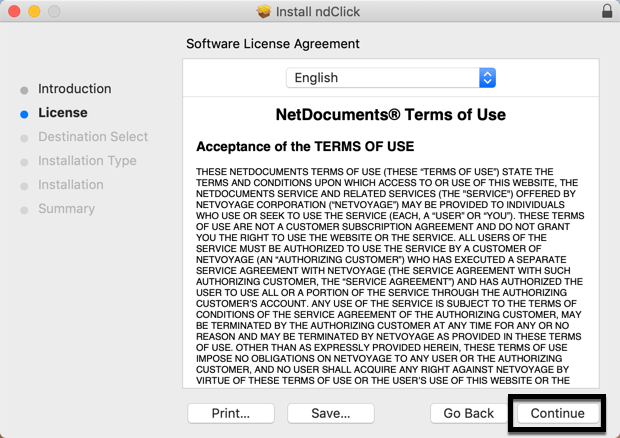
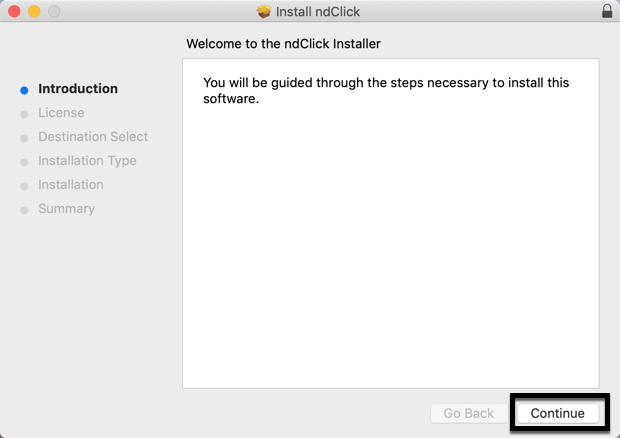
Step 2: Run ndclick.pkg – Click Continue
image

Step 3: Click Continue

image

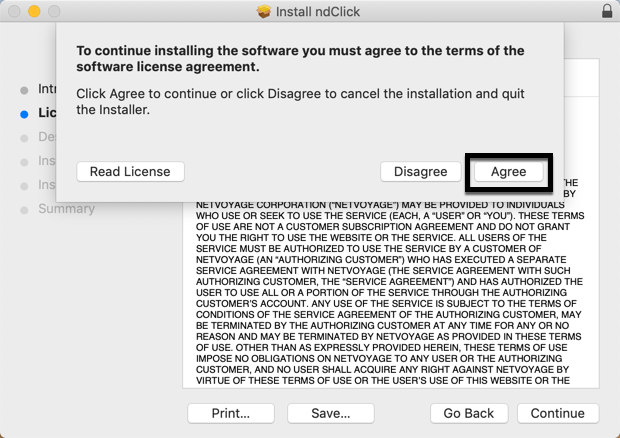
Step 4: Click Agree

image

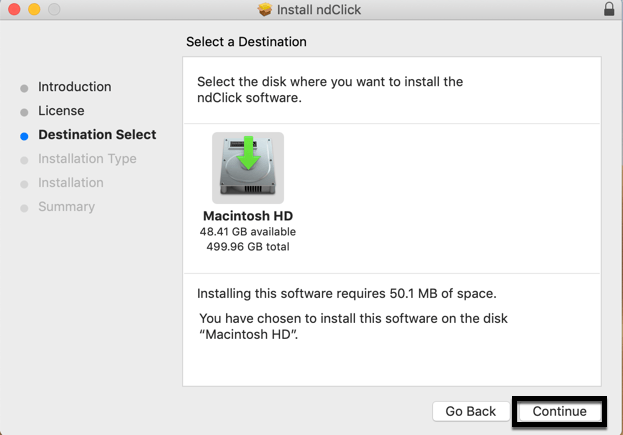
Step 5: Click Continue

image

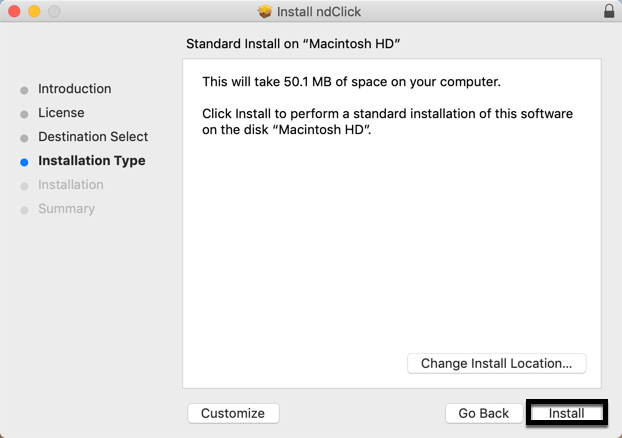
Step 6: Click Install

image

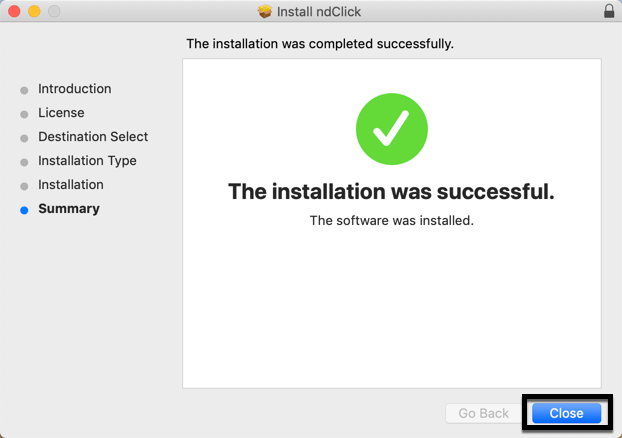
Step 7: Click Close

image

You should now see the ndclick icon.

image

About the Author

Craig Bayer is the founder and leader of Optiable, an award-winning document management (DMS) consulting firm dedicated to helping law firms seamlessly integrate NetDocuments. Specializing in firms with 10 to 150 users, he has successfully guided over 500 law firms across the United States and Canada through NetDocuments implementations since 2010.

With deep expertise in the legal industry, Craig has a proven track record of optimizing technology to meet the unique needs of law firms. His certifications include industry-leading tools such as Amicus Attorney, Centerbase, Clio, PCLaw, HotDocs, TimeMatters, Soluno, and Worldox, enabling him to deliver comprehensive solutions tailored to each client’s workflow and goals.

Craig Bayer