

If your law firm is moving from Worldox to NetDocuments, there’s one small but important configuration step that often gets overlooked: your ScanSnap scanner buttons.
Why This Matters
When Worldox was installed at your firm, the ScanSnap software was likely configured to send scanned documents directly into Worldox. This is done through the ScanSnap application’s profile settings, where each button on your scanner is mapped to a specific destination application. Now that you’re moving to NetDocuments, that Worldox integration needs to be updated — otherwise your scans won’t end up where you expect them.
The Fix: Switch from Worldox to Adobe
Rather than trying to build a direct ScanSnap-to-NetDocuments integration, the recommended approach is to change the destination of the ScanSnap button from the Worldox application to Adobe Acrobat (or Adobe Acrobat Reader). Here’s why this works well: NetDocuments has its own Adobe Acrobat plugin called ndOffice, which lets you save documents directly from Adobe to NetDocuments. So your new workflow becomes: scan → Adobe → save to NetDocuments.
Step-by-Step Instructions
Step 1: Right-click on the ScanSnap Button in the system tray
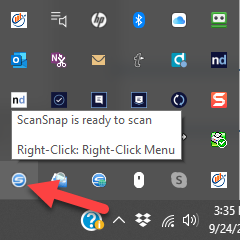
Step 2: Click on Scan Button Settings…

Step 3: Uncheck ‘Use Quick Menu’ and select your PDF Program.
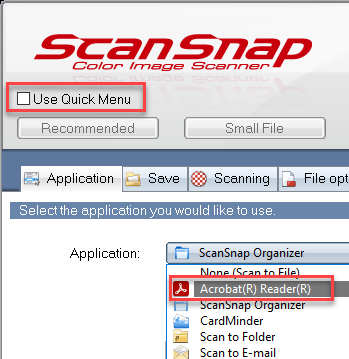
Once this is done, scans will open directly in Adobe. From there, you can use the NetDocuments toolbar within Adobe to save the document into the correct NetDocuments matter or workspace.
Need Help?
If you’re in the middle of a Worldox-to-NetDocuments migration and want to make sure every piece of the puzzle is configured correctly — including your scanners — Optiable can help. We’ve handled hundreds of migrations and know where the little details like this tend to trip people up. Contact us to get started.