

When you hit Save or Save As in Adobe Acrobat, you might see a dialog asking whether to save to Adobe Document Cloud or your computer — with no sign of NetDocuments. This is a common frustration for law firm staff who work in Acrobat regularly. The fix is a single preference change.
Why This Happens
Adobe Acrobat defaults to its own save dialog, which shows Adobe’s storage options first. This overrides the Windows-native Save dialog that ndOffice needs in order to intercept the save and prompt you to store the file in NetDocuments.
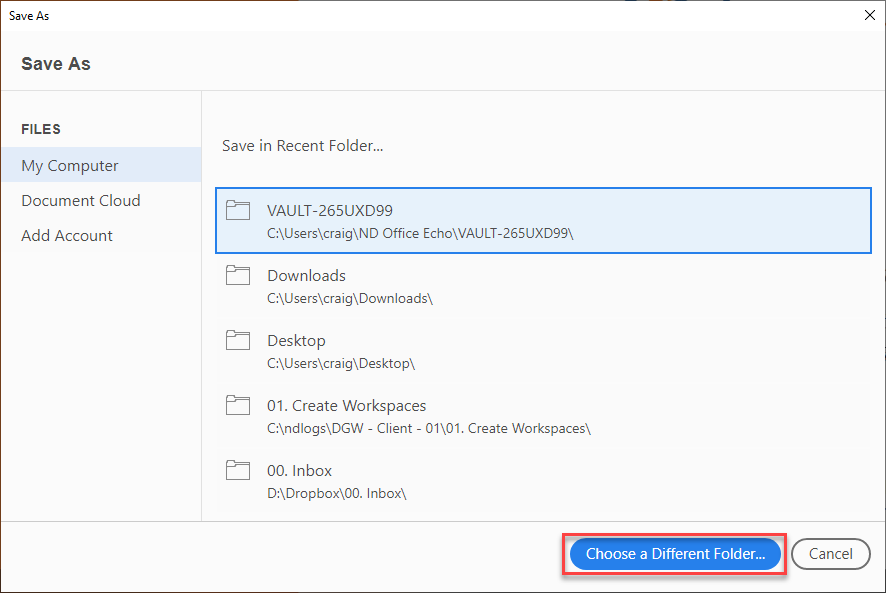
I don’t want to save to the Document Cloud or My Computer. I want NetDocuments to open.
There is a pretty easy fix.
Step 1: In Adobe, click Menu — Preferences — General
Step 2: Uncheck the Box next to Show Online storage
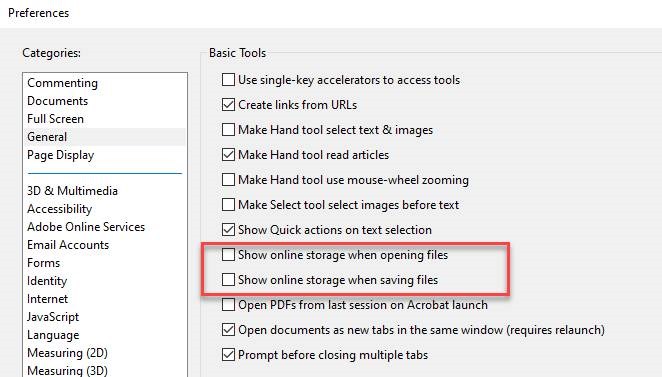
Step 3: Scroll down and click OK
Now, when I hit save or open in Adobe, NetDocuments opens automatically.
From this point on, when you save or open a file in Acrobat, the standard Windows file dialog will appear and NetDocuments will automatically pop open, just as it does from Word or Excel.
Still not seeing NetDocuments after making this change? Make sure ndOffice is installed and running (look for the NetDocuments icon in your system tray). If ndOffice isn’t active, the Windows save dialog will open, but NetDocuments won’t intercept it.