

Managing user accounts in NetDocuments is an essential part of keeping your system organized and cost-efficient. A common question we hear is: “What happens if I delete a user—will I lose their data?” The answer is no—deleting a user does not delete any documents, emails, or workspaces they created.
In this post, we’ll clarify what happens when you delete a user, how it affects your licenses, and how it differs from simply making a user inactive.
What Happens When You Delete a User
-
No data is lost.
All documents, emails, and workspaces created or edited by the user remain safely in NetDocuments. Ownership of content doesn’t vanish—the documents remain part of your repository. -
The user’s license is freed up.
When you delete a user, you reclaim the license associated with that account. This means you can reassign it to a new team member without having to purchase an additional license. -
Audit trails remain intact.
Even though the user is deleted, their name will still appear in document histories, version information, and audit logs. This ensures full accountability and traceability.
Deleting vs. Making a User Inactive
Both options block the person from signing in, but they have very different impacts:
Deleting a User
-
Removes the account from your directory.
-
Frees up a license immediately.
-
Audit trails and document ownership remain intact.
-
Best when the employee has permanently left, and you want to reassign their license.
Making a User Inactive
-
Keeps the account in your directory but disables login.
-
Does not free up the license — the seat is still in use.
-
Useful for temporary suspensions (e.g., maternity/paternity leave, long vacation, internal investigations).
-
The account can be reactivated at any time without re-adding the user.
Step-by-step: How to delete a user in NetDocuments
You must be a Repository Administrator (or have rights to add/remove users).
Step 1. Open Admin Console
In NetDocuments, go to Admin

Step 2. Users & Groups.

Step 3. Find the user that you want to delete.
Search or filter to locate the account.

Step 4. Click on the user, then go to the Group tab and take a screenshot of the group assignments.

Note: You are doing this if you need to replace this user with another user. That way, you can give them the same assignments.
Step 5. Check all cabinets to see if the user is a member of the Cabinet Administrators and take a screenshot of the Cabinet Administrators for each cabinet.

Note: You are doing this if you need to replace this user with another user. This way, you can give the new user the same Cabinet Administrator roles.
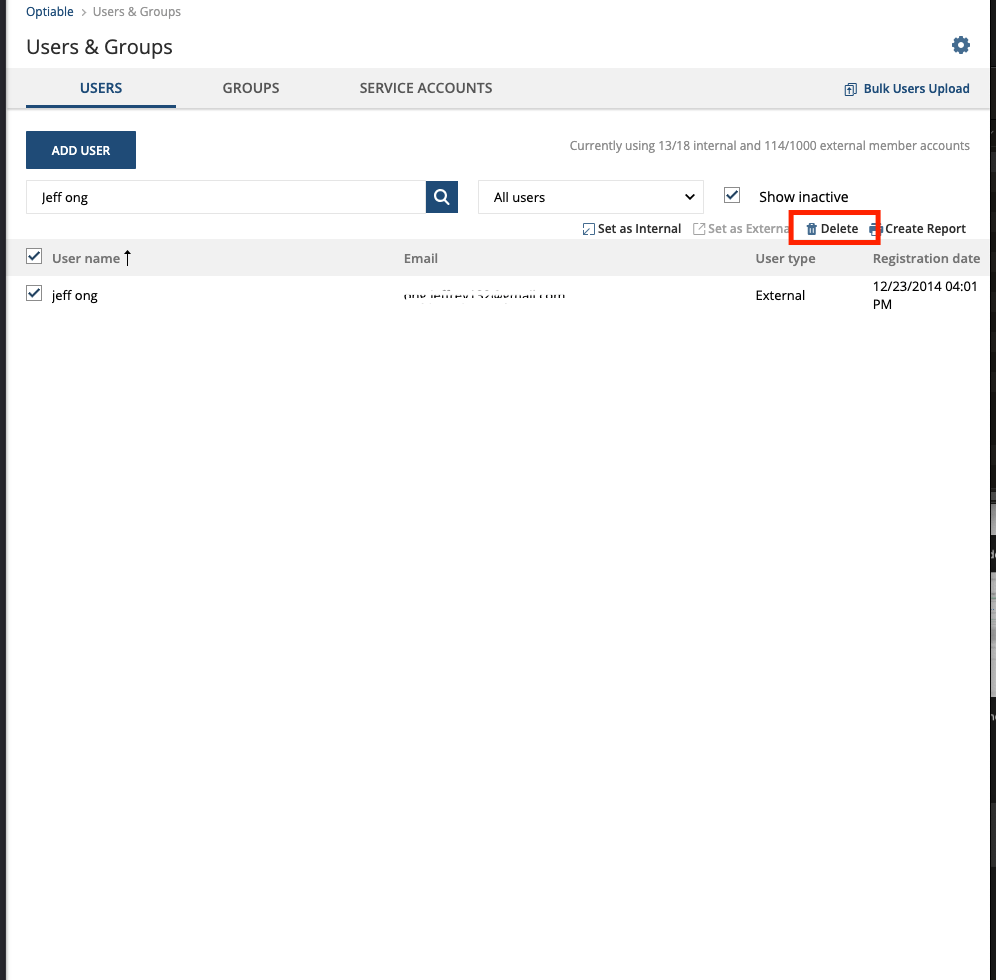
Step 6. Select the user
Check the box next to their name (or open their row actions).

Step 7. Delete
Click Delete (trash icon / “Delete” button), then confirm.
Step 8. If there is an Author or Typist Profile Attribute, close it
Go to Profile Attributes and open Author and Or Typist
Close the Value
