

The Problem:
You’ve just logged into NetDocuments for the first time at your new firm, and something looks off. Instead of just seeing your law firm’s cabinets, you’re also seeing cabinets from another law firm—maybe even a firm you worked with months or years ago. Your first thought might be panic: “Is this a security breach? Did someone make a mistake during setup?”
Take a deep breath. This is a common occurrence in NetDocuments and is not a bug or security issue.
Why This Happens
NetDocuments offers robust external collaboration features that enable users to share documents and workspace access across organizations. At some point in your professional history, someone from another law firm shared NetDocuments documents or a workspace with you. This could have been:
- A co-counsel arrangement on a case
- A document review project
- A client matter where you worked with outside counsel
- Any other collaborative legal work
When you were granted access to that external cabinet, NetDocuments automatically added it to your account. Now that you’re logging into NetDocuments at your new firm, those external cabinet permissions are still associated with your email address—and they’re appearing alongside your current firm’s cabinets.
The Quick Fix: Change Your Default Cabinet
The most immediate issue is that NetDocuments has set one of these external cabinets as your default. This means every time you log in, you’re landing in someone else’s document management system instead of your own firm’s.
Here’s how to fix it:
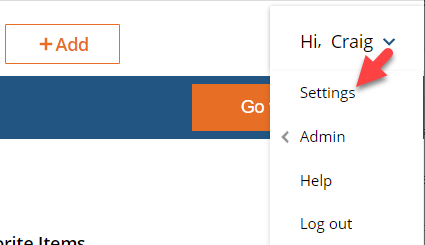
Step 1: Go to Settings
Step 2: Go to Account Information
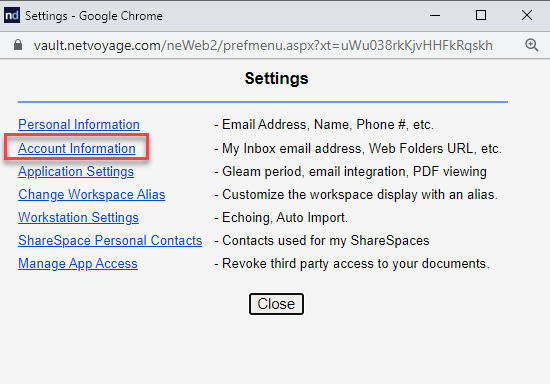
Step 3: Choose the Primary Cabinet and Click OK

Step 4: Close all your internet browsers, log out of NetDocuments, and log back in.
Once you’ve updated your default cabinet, NetDocuments will open to your firm’s Cabinet.
Fixing this in Outlook (ndMail)
After making these changes, you may still see the old cabinet in Outlook.
Step 1: Click the Plus sign and select the correct cabinet.

Step 2: Right-click on the incorrect cabinet and choose Close

Removing External Cabinets Entirely
If you no longer need access to the other law firm’s cabinet and want to clean up your NetDocuments interface, you need to reach out to the other law firm’s NetDocuments administrator or IT department and request that they remove you as an external user. Once they remove your access permissions, their cabinet will disappear from your NetDocuments view.
Optiable can’t do this for you because we don’t have access to the other firms.
At Optiable, we help law firms optimize their NetDocuments environments, including managing external user access, cleaning up cabinet structures, and ensuring proper security configurations. If your firm needs assistance with NetDocuments administration or user management, contact us for a consultation.