

Managing document storage effectively requires understanding how much space each cabinet consumes in your NetDocuments repository. This guide provides a step-by-step process for calculating storage using the Admin Console.
What You’ll Need
Before you begin, ensure you have:
- Access to NetDocuments with Admin Console permissions
- Cabinet Admin rights to each NetDocuments Cabinet
- A spreadsheet application (Excel, Google Sheets, etc.) to record your findings
- Approximately 30-60 minutes, depending on the number of cabinets
Step-by-Step Process
Part 1: Access Admin Console
- Log into your NetDocuments account
- Navigate to Admin Console (Hi, First Name, Admin)
Part 2: Navigate to the Cabinets View
- Once in Admin Console, locate and select the Cabinets section
- This will display a list of all cabinets in your organization
- You should see all cabinets you have permission to access

Part 3: Prepare Your Recording Spreadsheet
Before you start collecting data, set up a spreadsheet with the following columns:
- Cabinet Name: The name of each cabinet
- Storage (GB): The storage value for that cabinet
- Recalculate Date: When you recalculated the storage
- Notes: Any relevant information (e.g., department, status)
Part 4: Get the Correct Cabinet Storage Number
Before viewing storage values, ensure you’re viewing the most current data. NetDocuments doesn’t automatically update storage calculations in real time.
For each cabinet you want to measure:
Step 1: Select the Cabinet you want to recalculate
Step 2: Look for the Cabinet storage section and click Details
Step 3: Select “Recalculate”
Step 4: Wait for the recalculation process to complete (this may take several minutes for large cabinets)
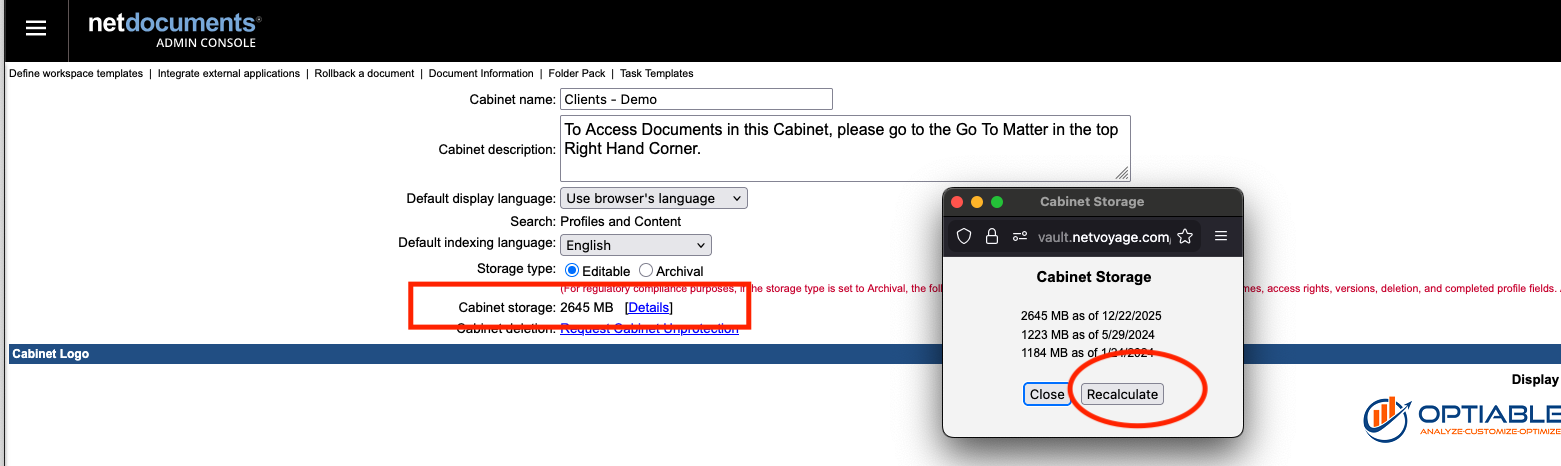
Why Recalculate? Storage values can become outdated as documents are added, deleted, or modified. Recalculating ensures you’re working with accurate, current storage data rather than cached values that may be days or weeks old.
Step 5: Record this value in your spreadsheet along with the cabinet name
Step 6: The value should now reflect the most recent recalculation
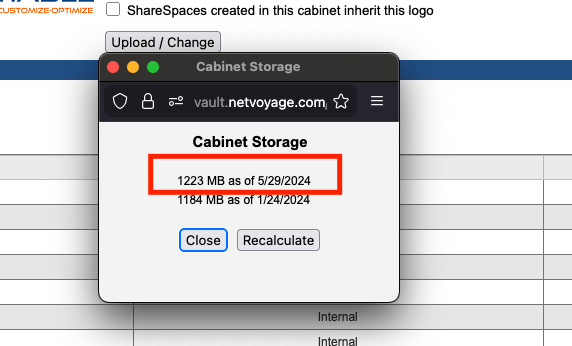
Tip: Complete Steps 4 and 5 for each cabinet before moving to the next one to ensure you capture the freshly recalculated values.
Part 5: Repeat for All Cabinets
- Move to the next cabinet in your list
- Repeat Part 4 for all Cabinets
- Continue until you’ve processed all the cabinets you need to measure
- Double-check your spreadsheet for any missing entries
Part 6: Calculate Total Storage
Once you’ve recorded all cabinet storage values:
- First, convert the result from MB to GB using a conversion tool: https://www.unitconverters.net/data-storage/mb-to-gb.htm
- Sum the storage column in your spreadsheet
- This total represents your organization’s current NetDocuments storage usage
Example Calculation:
- Finance Cabinet: 45.2 GB (recalculated 12/23/2025)
- Legal Cabinet: 128.7 GB (recalculated 12/23/2025)
- HR Cabinet: 23.5 GB (recalculated 12/23/2025)
- Marketing Cabinet: 67.3 GB (recalculated 12/23/2025)
Total Storage = 45.2 + 128.7 + 23.5 + 67.3 = 264.7 GB