

Because Outlook’s own Attach file button only knows about places Microsoft controls — your computer, OneDrive, SharePoint. NetDocuments isn’t in that list and never will be.
That’s the entire reason the add-in exists. It puts a NetDocuments panel next to your email so you can pull documents in from your Cabinet without leaving the message you’re writing.
The Steps
Step 1: Create a New Email and Pop It Out
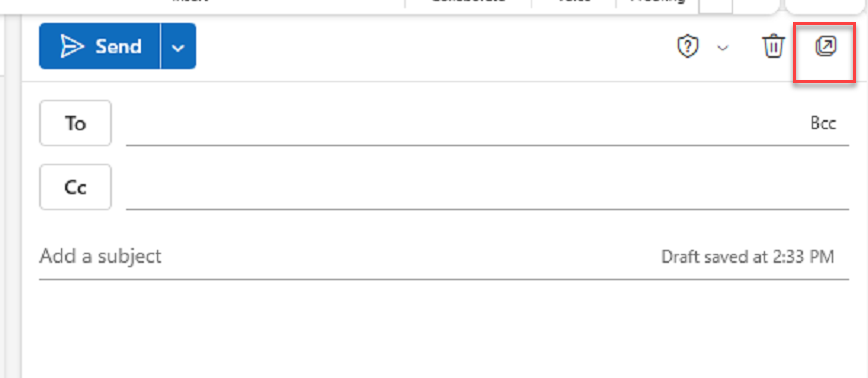
Start a new message, then click Pop out. You want the message in its own window before you go looking for NetDocuments.
Step 2: Click NetDocuments on the Ribbon
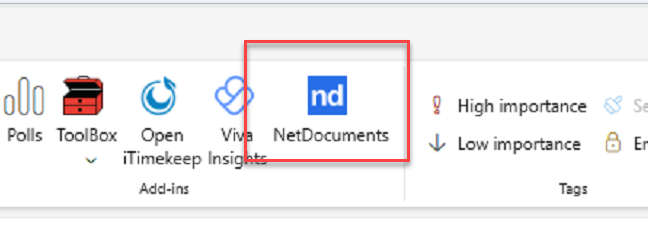
With the email open in its own window, click NetDocuments. The NetDocuments panel opens alongside your message.
Step 3: Make Sure the Panel Is Set to Share, Not File
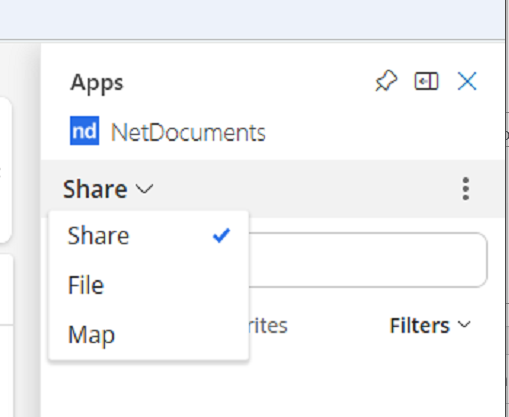
At the top of the panel there’s a toggle between Share and File. Share is for pulling documents out of NetDocuments and into your email. File is for saving the email into NetDocuments.
You want Share. If it opens on File, switch it back. This trips people up constantly — they’re sitting on the wrong side of the toggle and wondering why nothing looks right.
Step 4: Find the Document
You have two ways in:
- Browse — the panel opens on Recent Workspaces, and below that you’ll find Favorite Workspaces and all Workspaces. Click the arrow next to a Workspace to expand it and see the documents and folders inside.
- Search — click Search at the top and type your client name. If you use a client-matter structure, you’ll get the list of matters for that client. Pick one and search inside it.
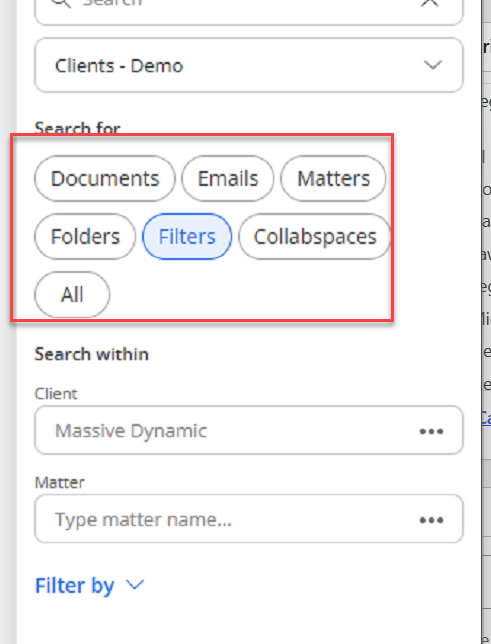
Search returns everything by default. Click Filters to narrow it down — by Doc Type, by folder, by whatever your firm profiles on. If you filter to Notes, for example, you get every Note in that matter in one list.
Step 5: Select Your Documents
Click a single document, or grab several at once:
- Ctrl-click to pick documents that aren’t next to each other
- Shift-click to select a whole run of them
Every option in the next step works on a multi-selection, so you can attach ten documents in one action.

Step 6: Choose How to Send Them
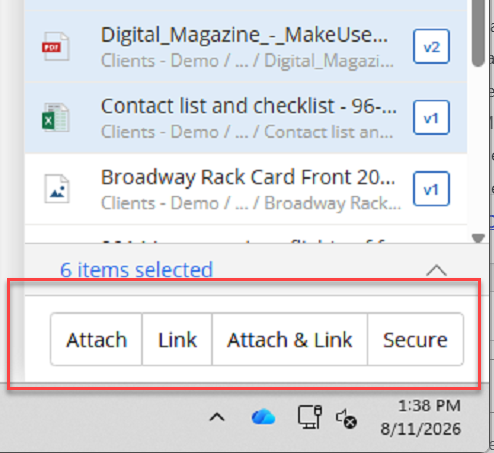
Once documents are selected, you get four options. They are not interchangeable, and picking the wrong one is how documents end up somewhere they shouldn’t:
- Attach — puts the actual file in the email. This is for people outside the firm. They get a copy.
- Link (email link) — inserts a link to the document in NetDocuments. This is internal only. Anyone outside your firm clicking that link gets nowhere, because they have no NetDocuments login.
- Attach and Link — does both. The recipient gets the file, and the link is in the body for the people inside the firm who are copied.
- Deliver a Secured Link — generates an external link with controls on it. You can set a password and an expiration date. Anyone in the world can open it if they have the link, so treat it accordingly.
Pin the Panel Open
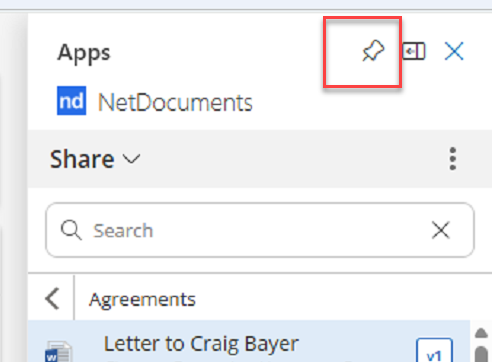
There’s a thumbtack at the top of the NetDocuments panel. Click it and the panel stays open instead of collapsing every time you click back into the email.
If you’re pulling documents from several matters into one message, pin it first. It saves you reopening the panel a dozen times.
The Result
Once you’ve done this a couple of times it’s about four clicks: pop out, NetDocuments, find, attach. Your documents go out of the DMS instead of off someone’s desktop, which means you’re always sending the current version — and for anything big, the secured link means you’re not gambling on the other side’s mailbox limits.
Need Help?
Rolling out the new Outlook and not sure your users know which of those four buttons to press? That’s a training conversation, and it’s a short one — we can walk your team through it and set the defaults that make sense for your firm, usually in a single session.
Schedule a free consultation: go.oncehub.com/optconsult
Or call us at 1-800-399-0852.
Craig Bayer is the founder of Optiable, a NetDocuments consulting firm specializing in law firms with 10 to 150 users. He has guided over 550 law firms across the United States and Canada through NetDocuments implementations since 2010.
CONNECT WITH CRAIG — https://www.linkedin.com/in/craigbayer/