

NetDocuments gets one detail right that most document systems miss: it lets you decide whether an edit deserves a full new version or just a subversion. But there’s a catch — that capability has to be enabled at the Cabinet level, and many firms never realize it’s there.
Full Versions vs. Subversions
The distinction is simple, and it maps cleanly onto how attorneys actually work.
A full version — v1, v2, v3 — marks a meaningful milestone. The draft that went to the client. The version that came back with the partner’s markup. The executed final. These are the points in a document’s life you’d actually want to return to.
A subversion — v1.1, v1.2, v1.3 — captures the smaller, in-between edits. You’re working through a draft over the course of a day, checking it in and out a few times, but none of those saves is a milestone. Subversions let you preserve that work without cluttering the history with a dozen entries that all look equally important.
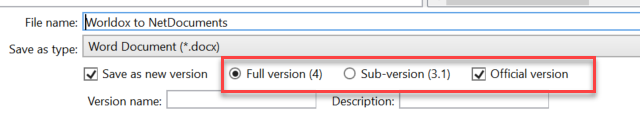
The result is a version history that reads like a story: major versions tell you what happened, subversions fill in the detail if you need it. Compare that to a system that stamps out a new full version every time someone saves, and you can see why the difference matters six months later when you’re trying to figure out which draft went out the door.
There’s No Downside to Turning It On
This is worth stressing, because it’s where people hesitate: enabling subversions doesn’t change anyone’s default behavior. When a user saves and checks a document back in, NetDocuments still defaults to creating a brand-new full version — exactly as it does today. Subversions are strictly opt-in. To create one, the user has to deliberately change the setting at check-in.
So turning the feature on at the Cabinet level costs you nothing. It simply gives your users the option to create a subversion when they want one. Anyone who never touches the setting keeps working the way they always have.
The Cabinet Setting You Have to Turn On
Here’s the part firms miss. Subversions aren’t on by default in every Cabinet — they’re controlled by a setting on the Cabinet’s admin page, under Versioning. If you want v1.1-style versioning, you have to select it deliberately.
Under Use full versions or sub-versions, choose Use sub-version numbers (Version 1, 1.1, 1.2, 2…). If you leave it on full version numbers, users only ever get v1, v2, v3 — there’s no option to create a subversion, even when they’d want one.
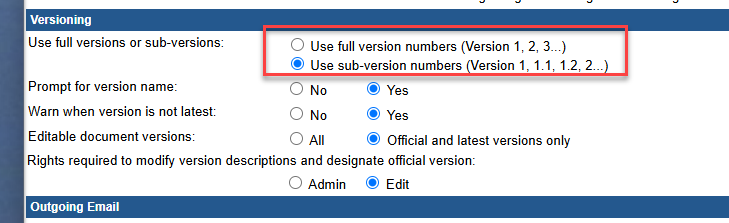
Subversions are a small feature that pays off in a big way — but only if the Cabinet is configured to allow them. If your firm is only seeing whole-number versions, check the Versioning settings on the Cabinet page. Flipping that one setting and pairing it with version-name prompts is the difference between a version history that’s a filing cabinet and one that’s just a pile of paper.