

It starts with a support call that sounds familiar: “I have to log into NetDocuments every single time.” But after a few questions, the real culprit comes into focus — it’s not NetDocuments at all. It’s Google Chrome refusing to hold onto an Office 365 login session.
This is one of the more confusing issues law firms encounter after setting up single sign-on (SSO) with NetDocuments, and the diagnosis tends to catch everyone off guard. Here’s what’s actually happening and what your IT team can do about it.
The Real Problem Is Not NetDocuments
When a law firm is configured with SSO, users don’t log into NetDocuments with a separate username and password. Instead, NetDocuments delegates authentication to Microsoft—specifically, Office 365/Microsoft Entra ID (formerly Azure AD). When you click “Sign In” in NetDocuments, Microsoft takes over, verifies who you are, and sends you back. From that point forward, your NetDocuments session is tied to your Office 365 session.
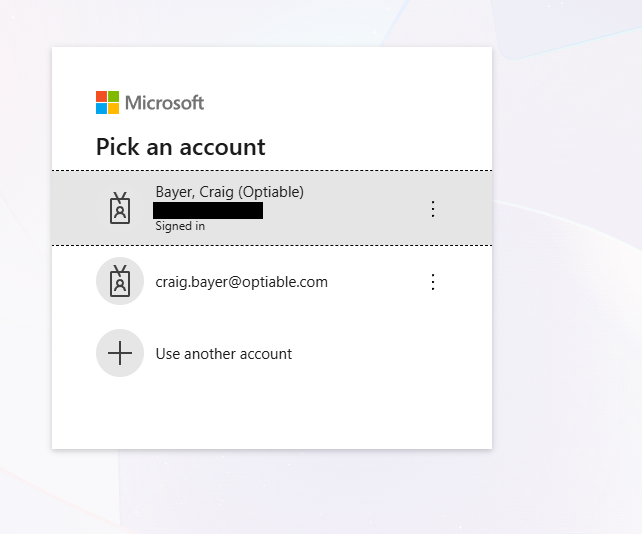
So when users complain about having to “log into NetDocuments” every time, what they’re really experiencing is Chrome failing to maintain the underlying Office 365 session. Once that session expires or is dropped, NetDocuments redirects them back to Microsoft to authenticate again — and it looks like a NetDocuments login prompt.
The quick proof: switch the same user to Microsoft Edge, and the problem disappears entirely.
Why Chrome and Not Edge?
Microsoft Edge has a significant advantage here: it is built on the same Chromium engine as Chrome, but it has deep, native awareness of Microsoft 365 accounts. Edge can silently authenticate against Microsoft’s identity platform using the Windows account credentials already present on the machine — no stored cookie required. This is part of what Microsoft calls seamless SSO.
Chrome has none of that built-in Microsoft account awareness. It depends entirely on cookies to maintain the Office 365 session. If those cookies aren’t written, stored, or persisted properly — due to Chrome settings, extensions, privacy tools, or enterprise policy — the session drops and the user is asked to sign in again.
Common Causes of Chrome Dropping the Session
There are several reasons Chrome may not be preserving the Office 365 session:
- Third-party cookies are blocked. Microsoft’s authentication flow depends on cross-domain cookies (login.microsoftonline.com, autologon.microsoftazuread-sso.com, and others). If Chrome is set to block third-party cookies — which is increasingly the default — these cookies may not be written correctly.
- “Clear cookies on exit” is enabled. Some Chrome configurations wipe cookies every time the browser closes. Any session that was properly authenticated during the day will be gone the next morning.
- Privacy or security extensions. Extensions such as ad blockers, tracker blockers, or privacy tools (e.g., uBlock Origin, Privacy Badger) can interfere with Microsoft authentication cookies. Users often have these installed without realizing the impact on enterprise apps.
- Group Policy conflicts. On managed machines, IT-enforced Group Policy or Chrome Enterprise Policy may include cookie restrictions, session controls, or browser settings that override individual Chrome preferences.
- Microsoft Conditional Access sign-in frequency policy. Your organization’s Microsoft Entra ID may be configured to require reauthentication on a set schedule (for example, every hour or every 8 hours). This is a server-side policy and will affect any browser, not just Chrome.
What Your IT Team Can Do
Forward this post to your IT administrator or managed service provider. Here are the fixes to work through, in order of simplicity:
1. Install the Microsoft Single Sign-On Extension for Chrome
Before escalating to your IT team, try this first. Microsoft publishes an official Chrome extension that gives Chrome the same SSO capability Edge has natively. It allows Chrome to authenticate with Microsoft Entra ID using the Windows account already on the machine — without relying solely on cookies.
To install it:
- Open Chrome and go to this link: Microsoft Single Sign On — Chrome Web Store
- Click “Add to Chrome” and confirm the installation.
- Close and reopen Chrome, then open NetDocuments and test whether the repeated login prompt is gone.
Important note: This extension works best on managed Windows 10/11 devices. On unmanaged machines or macOS, results may vary — macOS additionally requires Microsoft’s Company Portal to be installed. If this extension doesn’t resolve the issue, proceed with the IT-level steps below.
2. Switch Affected Users to Microsoft Edge
If the extension doesn’t do the trick, switching to Microsoft Edge is the most reliable fix. Edge natively maintains Microsoft 365 sessions without requiring any configuration changes. For most law firms, redirecting affected users to Edge as their default browser for NetDocuments will resolve the issue immediately. Edge’s Chromium base means it renders everything the same way as Chrome, so there are no compatibility issues with NetDocuments, ndOffice, or ndMail.
3. Allow Microsoft Domains in Chrome’s Cookie Settings
If Chrome is required, your IT admin should whitelist Microsoft authentication domains so their cookies are always allowed. In Chrome settings (or via Group Policy/Intune), add these to the allowed cookies list:
- microsoftonline.com
- microsoft.com
- microsoftazuread-sso.com
- microsoft.com
- office.com
The Microsoft support article for this is available at support.microsoft.com under “Troubleshoot signing in to Microsoft 365.” It includes specific configuration steps for Chrome and Edge.
4. Disable “Clear Cookies on Exit” in Chrome
Check Chrome’s Settings > Privacy and Security > Cookies and other site data. If “Clear cookies and site data when you close all windows” is enabled, disable it. This is a common culprit on machines where users are otherwise signed in successfully during the day but prompted again the next morning.
5. Check for Conflicting Extensions
Have affected users open Chrome and go to chrome://extensions. Temporarily disable any privacy, ad blocking, or security extensions, then test whether the session persists. Common culprits include uBlock Origin, Privacy Badger, Ghostery, and similar tools. If disabling extensions resolves the issue, the IT team can configure those extensions to whitelist Microsoft authentication domains rather than removing them entirely.
6. Review Microsoft Entra ID Conditional Access Policy
If the problem affects all browsers and not just Chrome, the issue may be a server-side sign-in frequency policy in Microsoft Entra ID. Your Microsoft 365 admin can review this in the Microsoft Entra admin center under Protection > Conditional Access. A session control setting that enforces reauthentication every hour, for example, will override browser cookie persistence entirely. This is less common in small law firms but worth checking if the other steps don’t resolve it.
7. Deploy the Chrome Group Policy Template (Enterprise)
For firms with managed devices and an IT team using Group Policy or Microsoft Intune, Google provides a Chrome ADMX template that allows centralized control of cookie behavior, session persistence, and allowed sites. This is the cleanest long-term solution for organizations that want to standardize Chrome behavior across all workstations without relying on individual users to adjust settings.
The Bottom Line
If your firm uses NetDocuments with single sign-on and your users are being prompted to log in repeatedly, the browser is the problem — not NetDocuments. Switching to Microsoft Edge is the simplest and most reliable fix. If Chrome is a firm standard, your IT team will need to adjust cookie settings to allow Microsoft authentication domains to persist.
This is a configuration issue, not a NetDocuments bug, and it’s fully resolvable with the right browser or the right browser settings.
Need Help? If you’re not sure whether your firm’s SSO configuration is set up correctly, or if you’re seeing authentication issues that go beyond browser settings, Optiable can help. We’ve implemented NetDocuments at over 550 law firms and work through these kinds of issues regularly. Contact us to schedule a consultation.