

If you want this solved immediately, call NetDocuments Tech Support, and they can jump on your pc and fix the issue: 801.226.6882
One of the most frustrating issues NetDocuments users encounter is documents not checking back in after editing. You’ve finished your work and closed the document, but it still appears to be checked out. You have this issue if the following happens:
- Documents download instead of automatically opening up
- Documents never check back in, so there is a green check mark next to every document you open.
- I saved a document into NetDocuments, and I don’t see the changes in NetDocuments.
Understanding the Check-In Process
Before diving into troubleshooting, it helps to understand what happens during a check-in. When you check out a document in NetDocuments, you create a temporary lock that prevents others from editing it simultaneously. NetDocuments opens up the document on your local computer, and you can make your changes. When you check it back in, NetDocuments uploads your modified version, releases the lock, and makes the document available to others again.
How do you know if you have a problem?
This article explains how to search for checked-out documents and manually check them back in. Once you have followed the steps below to solve these issues.
Step 1: Configure Brave, Chrome or Edge to work with NetDocuments
This issue was caused by a change introduced in Google Chrome 142 and Microsoft Edge 143. These releases require that Local Network Access be enabled manually or via an administrative policy. In previous versions, this setting was enabled by default. As a result of this new setting, ndClick may fail to bind to a local port required for operation.
In Google Chrome

In Microsoft Edge

In Brave

Solution for IT companies to implement firm-wide: https://support.netdocuments.com/s/article/Configure-Local-Network-Access-permissions-for-NetDocuments
Step 2: The web browser you are using is out of date
See this article, which explains how to update your web browser: https://optiable.com/why-you-should-always-keep-your-web-browser-updated/
Step 3: Verify that ndOffice is installed on your computer (Windows PC)
In your system tray, verify that you see the nd icon
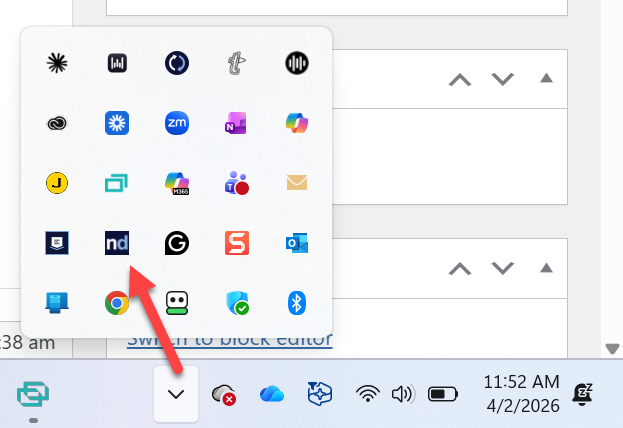
If this icon is missing, please restart your pc. If the icon still doesn’t appear after restarting your PC, ndOffice isn’t installed correctly.
Click Here to install ndOffice: https://apps.netdocuments.com/apps/ndOffice/ndOfficeSetup.exe
Step 4: Are you using Firefox? If so, please follow these steps to properly set up NetDocuments in Firefox.
See this article.
Step 5: Are you using the Brave Web Browser? If so, please follow these steps to properly set up NetDocuments in Brave
See this article.
Step 5: Are all documents not checking in, or is it only a specific type, such as PDFs or Word documents?
If it’s only certain types of documents, use this step to troubleshoot:
- Word\Excel\PowerPoint: https://optiable.com/my-netdocuments-plugins-in-word-excel-outlook-have-disappeared/
- Adobe: https://optiable.com/ultimate-guide-to-troubleshooting-adobe-issues-with-netdocuments/
Step 6: Are you on a Mac?
Install ndClick and restart your PC: https://optiable.com/installing-ndclick-on-a-mac/
Firefox and NetDocuments work on Windows but not on macOS.
Log in and restart your Mac
Step 7: Try Switching Browsers and see if it still happens.
If you’re using Chrome, switch to Edge or vice versa
If you are using Firefox, switch to Chrome or Edge.
Step 8: Have your IT turn off virus scanning for the ndOffice Folder:
C:\Users\USERNAME\ND Office Echo\
Step 9: Call NetDocuments Tech Support; they will log in and resolve the issue.
801.226.6882
Fixing Checked out Documents
Once you fix the issue, you might have checked out documents that you need to check back in. This post explains how to check those documents back into NetDocuments.
Conclusion
Check-in issues in NetDocuments can be frustrating, but they’re almost always solvable. The key is methodical troubleshooting—start with the most straightforward explanations, such as network connectivity or permissions, then move to more complex scenarios involving application conflicts or synchronization problems.
By understanding how the check-in process works and following the troubleshooting steps outlined here, you should be able to resolve most issues quickly and get back to productive work. And remember, implementing preventive best practices will minimize these problems in the first place, making your NetDocuments experience smoother and more reliable.