

If you’ve ever lost your internet connection mid-workday and suddenly couldn’t access a document you needed, this feature is for you. ndOffice includes a proactive document syncing capability that keeps your most important files downloaded and up to date on your device at all times — so when you go offline, you don’t skip a beat.
What Is the All Synced Items Tab?
The All Synced Items tab in ndOffice is a combined view of your favorite documents (the same ones pinned to your NetDocuments Home Page) and your Recent Documents from the web interface. What makes this tab different from a simple list is that every document on it is actively synchronized to your device. You’re not just seeing a list of files — you’re looking at files that are already downloaded and kept up to date locally.
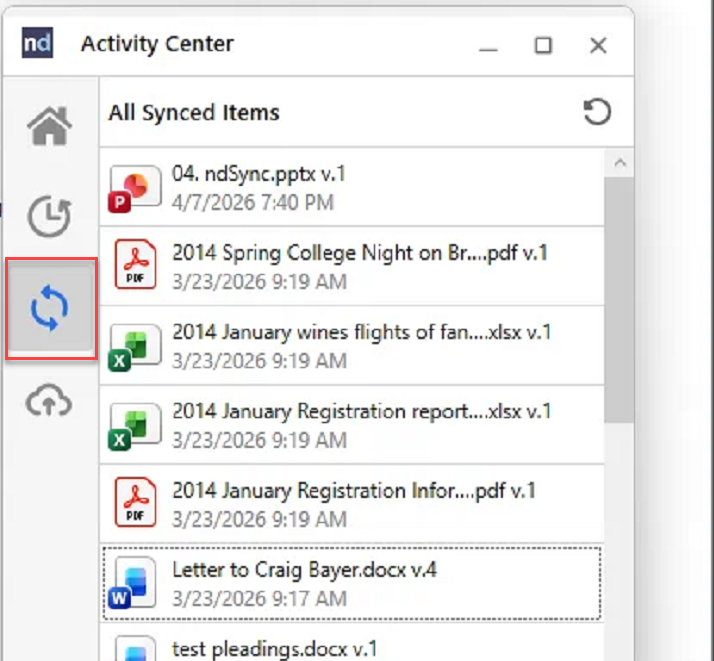
This means two things. First, if your internet goes out, you can keep working on any document in that list without interruption. Second, because the files are already on your device, they open noticeably faster than documents that need to be fetched from the server first.
How the Sync Works
ndOffice checks in with the NetDocuments web service every 30 to 35 minutes to determine which items to sync. It then downloads any files that have changed. To keep things orderly, ndOffice handles up to five simultaneous downloads at a time — if more than five files need to be pulled down in a single sync cycle, the rest are queued and downloaded as slots open up.
When you open a document from the All Synced Items tab, ndOffice pulls it from your local copy rather than the web. It’s faster and works without a connection. That document also gets added to your ndOffice Activity tab for easy reference.
How to Turn It On
This feature is not enabled by default and must be configured by an administrator via two Windows registry settings. Here’s how to set them up:
Step 1: Open the Registry Editor
- Click Start and type
regeditin the search box, then press Enter. - If prompted by User Account Control, click Yes.
- Navigate to:
HKEY_LOCAL_MACHINE\Software\NetVoyage\NetDocuments(If you’re configuring this for a single user only, useHKEY_CURRENT_USER\Software\NetVoyage\NetDocumentsinstead. Settings at HKEY_LOCAL_MACHINE apply to all users on the machine and take priority.)
Step 2: Create the TurnOnPDC value
- Right-click in the right pane and select New > String Value.
- Name it
TurnOnPDC. - Double-click it and set the value data to
True.

Step 3: Verify EchoRetention is set
The All Synced Items feature requires document echoing to be active. Check whether an EchoRetention value already exists in the same registry key. If it does, confirm it is set to a number greater than 0 — this represents the number of days echoed files are retained locally. If it is set to 0 or does not exist, create it as a String Value and set it to 30 (30 days is a common default).
Step 4: Restart ndOffice
After saving the registry changes, restart ndOffice. The All Synced Items tab will now appear in the ndOffice Activity Center.
A Simple Fix for a Common Problem
Lost internet is one of those low-grade frustrations that sneaks up on you at the worst times — traveling between offices, dealing with an outage, or working somewhere without reliable Wi-Fi. The All Synced Items tab is a straightforward solution: your recent and favorited documents are always there, always current, and always ready. It’s one of those features that’s easy to overlook until the day you actually need it.
If you have questions about setting up proactive document sync or configuring ndOffice for your firm, contact us or schedule a consultation at go.oncehub.com/optconsult.