

Why Does NetDocuments Say “A Problem Occurred While Communicating” When Saving?
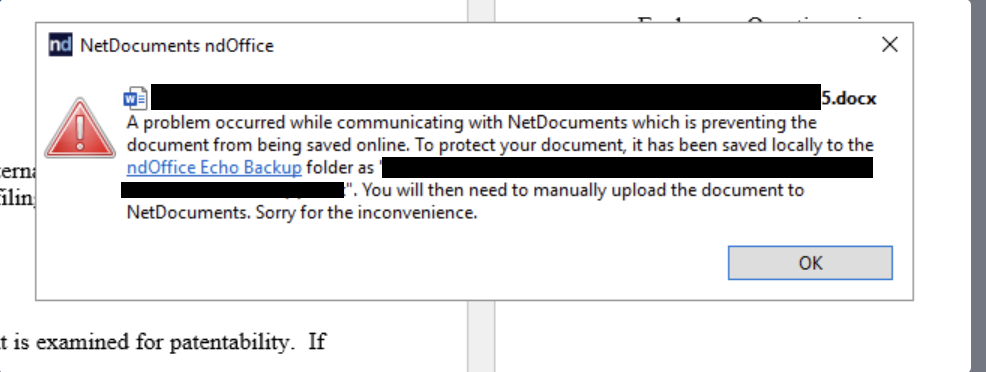
If you’ve ever been working in Word or Excel through ndOffice and suddenly seen this error message:
“A problem occurred while communicating with NetDocuments, which is preventing the document from being saved online. To protect your document, it has been saved locally to the ndOffice Echo Backup folder as ‘FileName.ext’”
You’re not alone. We’ve seen this error across many of the 550+ law firms Optiable has worked with, and it’s one of the most misleading messages in ndOffice. The wording makes it sound like a network connectivity issue every time, but in reality, there are several very different causes behind this single error message.
Here’s the first thing to know: this is almost always a random, one-time event. You’ll see it once, recover your document, and may not encounter it again for months or even years. It’s rarely a sign of a deeper systemic problem. That said, it’s worth understanding the possible causes so you know how to respond when it does happen.
The Good News: Your Document Is Safe
Before we troubleshoot, here’s the most important thing to know: when this error appears, ndOffice has already saved a copy of your document locally to the Echo Backup folder. Your work is not lost.
The Echo folder is ndOffice’s built-in safety net. It stores recovery copies of documents whenever a save to NetDocuments fails, regardless of the reason. By default, the Echo folder is located at:
Step 1: Go to %USERPROFILE%\ND Office Echo\ (C:\Users\<your-username>\ND Office Echo\SERVICE-<your-username>)
Step 2: Open up the Vault Folder
Step 3: Look in the Back Up Folder
To access it quickly, right-click the ndOffice icon in your system tray, click the gear icon, and select “View Echo Folder.” Inside, look in the Backup subfolder for your document. For a full walkthrough of the Echo folder, see our guide: How to Locate and Manage Your ndOffice Echo Folder.
What Causes This Error?
This is where things get tricky. NetDocuments uses the same generic error message for multiple, unrelated problems. That’s been a longstanding frustration in the NetDocuments community, and it makes troubleshooting harder than it needs to be. Here are the known causes.
Cause 1: Antivirus Software Scanning the Echo Folder
One cause that often goes overlooked is antivirus software interfering with the ndOffice Echo folder. When ndOffice saves a document, it writes to the Echo folder as part of its normal process. If your firm’s antivirus software is actively scanning that folder, it can lock the file at the exact moment ndOffice is trying to write to it, causing the save to fail and triggering this error.
This is an easy one to rule out and fix:
- Have your IT department exclude the ndOffice Echo folder from real-time antivirus scanning. The default path is C:\Users\<username>\ND Office Echo\.
- If your firm uses a centrally managed antivirus product, the exclusion can be deployed across all workstations via policy.
- After adding the exclusion, monitor whether the error reoccurs.
This is a particularly sneaky cause because it’s completely intermittent. The antivirus scan and the ndOffice save have to collide at the same moment, which is why you might see this error once and not again for a very long time.
Cause 2: Workspace Security Restrictions
If a user tries to save a document to a workspace where they don’t have sufficient security rights, ndOffice returns the same “communication problem” message instead of telling them they lack permission. This is one of the causes for which the error message is least helpful.
Here’s how it typically happens: a user opens a Save As dialog, fills in the profile information (client, matter, document type), and selects a workspace that has security restrictions. ndOffice lets them see and select the workspace without any warning. The error only appears when the actual save is attempted.
How to confirm this is the cause:
- Try saving the same document to a different workspace where you know you have full access.
- If the save succeeds elsewhere, the original workspace likely has security restrictions.
- Ask your NetDocuments administrator to check your access rights on that workspace.
If you’re an administrator, look for a security group (like !SecurityGroup|VESA) applied to the workspace and verify the affected user is a member.
Cause 3: Internet Connectivity or Network Interruption
This is the cause of the error message, and it does happen. If your internet connection drops, becomes unstable, or experiences a momentary interruption while ndOffice is trying to save, the save will fail.
What to check:
- Confirm your internet connection is active. Try loading a website in your browser.
- If you’re on VPN, check that the VPN connection is stable and hasn’t disconnected.
- If you’re on Wi-Fi, try switching to a wired Ethernet connection for reliability.
- Check whether other cloud applications (Outlook, Teams, OneDrive) are also having trouble connecting.
If the connection was temporarily lost, ndOffice will save your document to the Echo Backup folder and may prompt you to work offline. Once connectivity is restored, you can manually check the document back in by uploading the backup copy as a new version.
Cause 4: Server-Side Issues at NetDocuments
On rare occasions, the issue is on NetDocuments’ end. Their servers may be undergoing maintenance, experiencing load issues, or encountering a temporary error while processing your save request.
What to do:
- Check the NetDocuments status page at status.netdocuments.com for any reported outages or maintenance windows.
- Wait a few minutes and try saving again.
- If the issue persists and is affecting multiple users at your firm, contact NetDocuments Support directly at 801.226.6882.
Need Help?
In most cases, this error is a one-time hiccup that resolves itself. But if you’re seeing it repeatedly or across multiple users at your firm, Optiable can help. Whether it’s an antivirus exclusion, a security configuration review, an ndOffice upgrade, or an LNA policy deployment, we’ll get you sorted out.
Contact us at help@optiable.com or call 1-800-399-0852.
About Optiable
Optiable is the leading provider of NetDocuments migration, training, and setup services. Since 2002, we’ve helped attorneys and law firms use technology to improve their businesses.