

We recently got this question from a client:
“In my Navigation section I have several workspaces as favorites, but they’re not showing up in my Favorite Workspaces section. What’s the difference between a Favorite Matter and a Favorite Workspace? And how do I get the matters to appear under Favorite Workspaces?”
Favorite Matters and Favorite Workspaces Are the Same Thing
There is no difference. A Matter IS a Workspace. NetDocuments lets your administrator rename “Workspace” to whatever your firm calls them — most law firms use “Matters,” some use “Cases.” That’s why the Navigation pane on the left says “Favorite Matters” while the section on your Home Page says “Favorite Workspaces.” Same list, same star, different label.
You add a workspace (or document) to your favorites by clicking the open star icon next to its name. A filled star means a link to that item has been placed on your Home Page, at the top of the Favorite Items or Favorite Workspaces section.
Why Your Favorites Aren’t Showing Up on the Home Page
If your favorites show in the Navigation pane but the Favorite Workspaces section on your Home Page is empty (or missing entirely), the section is almost always set to Hidden. Here’s the fix:
- Go to your Home Page (the first page you see when you log in).
- Click the small arrow next to the word Home and click Edit Layout.
- Move your mouse over Favorite Workspaces and click the blue arrow.
- You will see it is set to Hidden. Change it to Display 15 items.
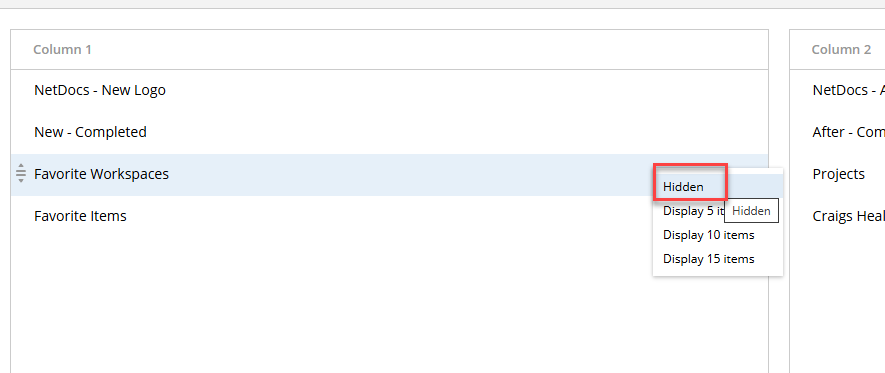
- Click Save Changes.
Your favorited matters will now appear under Favorite Workspaces on the Home Page.
“I Can Only See 15 Workspaces on the Home Page!”
While you can favorite up to 350 workspaces, the Favorite Workspaces section on the Home Page can only display 15. Two ways around this:
The full list of everything you’ve favorited is on the Favorite Workspaces page, which you can access from the top of every page in NetDocuments.
Or, create a custom section on your Home Page: click the drop-down arrow next to Home, choose Edit Layout, type a new section name (like “Craig’s Cases”) in the box at the bottom, and click Add. You can drag the section into any column, then drag workspaces from Favorite Workspaces into it. Click Save Changes when done.
Bonus Tips
You can right-click the star icon on any page and an “Add to” dropdown appears letting you pick exactly where the item goes. You can even select multiple items in a list view, right-click a star, and add them all to a Home Page section in one step.
And a gotcha: if you click on a specific cabinet in the Navigation pane, you’ll only see the Recent and Favorite workspaces for that cabinet. A matter you favorited in a different cabinet isn’t gone — you’re just looking at a filtered view. The full list is under Favorite Matters at the top of the Navigation pane.