

You’ve been there. You’ve got a 96 MB stamped request for production sitting in NetDocuments. Opposing counsel needs it today, so you select the document, click Email copy, and instead of an email, you get a warning:
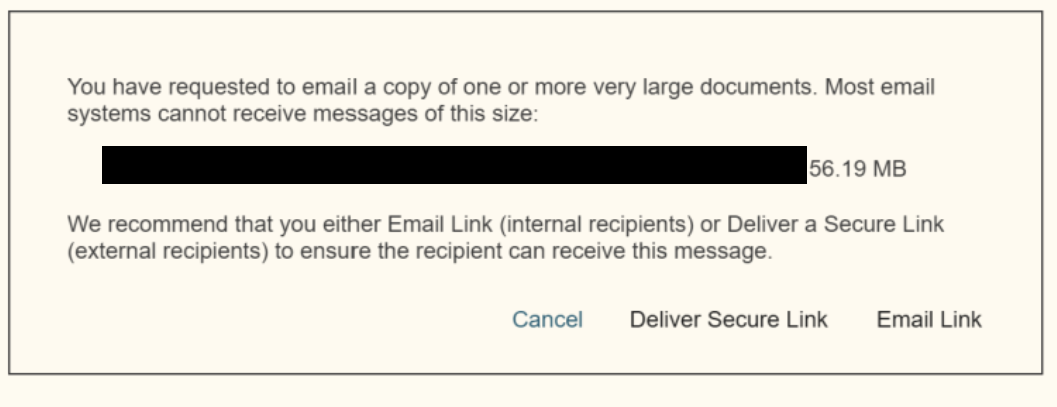
The same thing happens in Outlook. You use ndAttach, choose email copy instead of a link, and NetDocuments stops you in the same place.
Most people read that message as NetDocuments being difficult. It isn’t. NetDocuments is telling you something about email that you’d otherwise find out the hard way.
The Reason Is Office 365, Not NetDocuments
Office 365 generally won’t send an attachment larger than 25 MB. That’s the practical ceiling most firms are running with.
NetDocuments knows that. So when you try to email a copy of a file that’s well past that number, it throws up the warning instead of handing a doomed message to Outlook. It’s saving you the failed send, the bounce-back, and the phone call from opposing counsel’s paralegal asking where the production is.
That 96 MB production set was never going to arrive.
There’s No Way Around It
This is the part clients don’t want to hear. There’s no setting to flip and no trick that gets a 96 MB attachment into someone’s inbox.
Your firm’s limit isn’t the only limit. Even if your administrator raises what you can send, the recipient’s mail system has its own cap, and you don’t control opposing counsel’s IT department.
Zipping it doesn’t help. Scanned PDFs, TIFFs, and images are already compressed. A 96 MB production set zips to maybe 90 MB. You’ve accomplished nothing except making the recipient unzip a file.
Splitting it into five emails is worse. They arrive out of order, one gets quarantined, and now you’re rebuilding a production set over the phone.
Sending it from a personal Gmail is the worst option of all. Smaller limit, and the transmission never touches your firm’s record. Don’t.
Send a Secured Link Instead
That’s what the message is telling you to do, and it’s the better answer anyway — even when the file is small enough to attach.
When you email a copy, that document is gone. It lives on someone else’s mail server, gets forwarded to people you’ll never know about, and you have no visibility into any of it.
A secured link keeps you in control:
- Password protection – you set it, and administrators can require it on every link
- Expiration – 30 days by default
- Download on or off – let them view it without handing over the file
- Revocation – wrong recipient? Kill the link. You can’t un-send an attachment
- Notifications – find out when they actually open it
Size stops being your problem, and you get an audit trail you didn’t have before. (More on that in Do You Know When Documents Are Leaving Your Law Firm?)
The Bottom Line
Office 365 won’t send files over about 25 MB. NetDocuments warns you because it knows Outlook can’t deliver the message.
There’s no workaround. Send the link.