

If you’ve ever wanted a quick way to get files into NetDocuments without leaving your browser, drag-and-drop is a handy option—but it has some important limitations worth understanding before you rely on it. In this post, we’ll walk through how dragging works, when it makes sense to use it, and how it compares to the other two upload methods available to you: the Add/Upload button and the NDOffice import tool.
How Dragging Into NetDocuments Works
You can drag almost anything directly onto the NetDocuments webpage: files from your desktop or Windows Explorer, emails from Outlook, or individual email attachments. Simply select what you want to upload and drag it into the open NetDocuments window.
One important navigation requirement: you cannot drag items into NetDocuments while you’re at the workspace level or in the standard list view. You must first navigate to a specific filter or folder, then drag items directly into that location. If you’re just looking at a workspace overview, drag-and-drop simply won’t work.
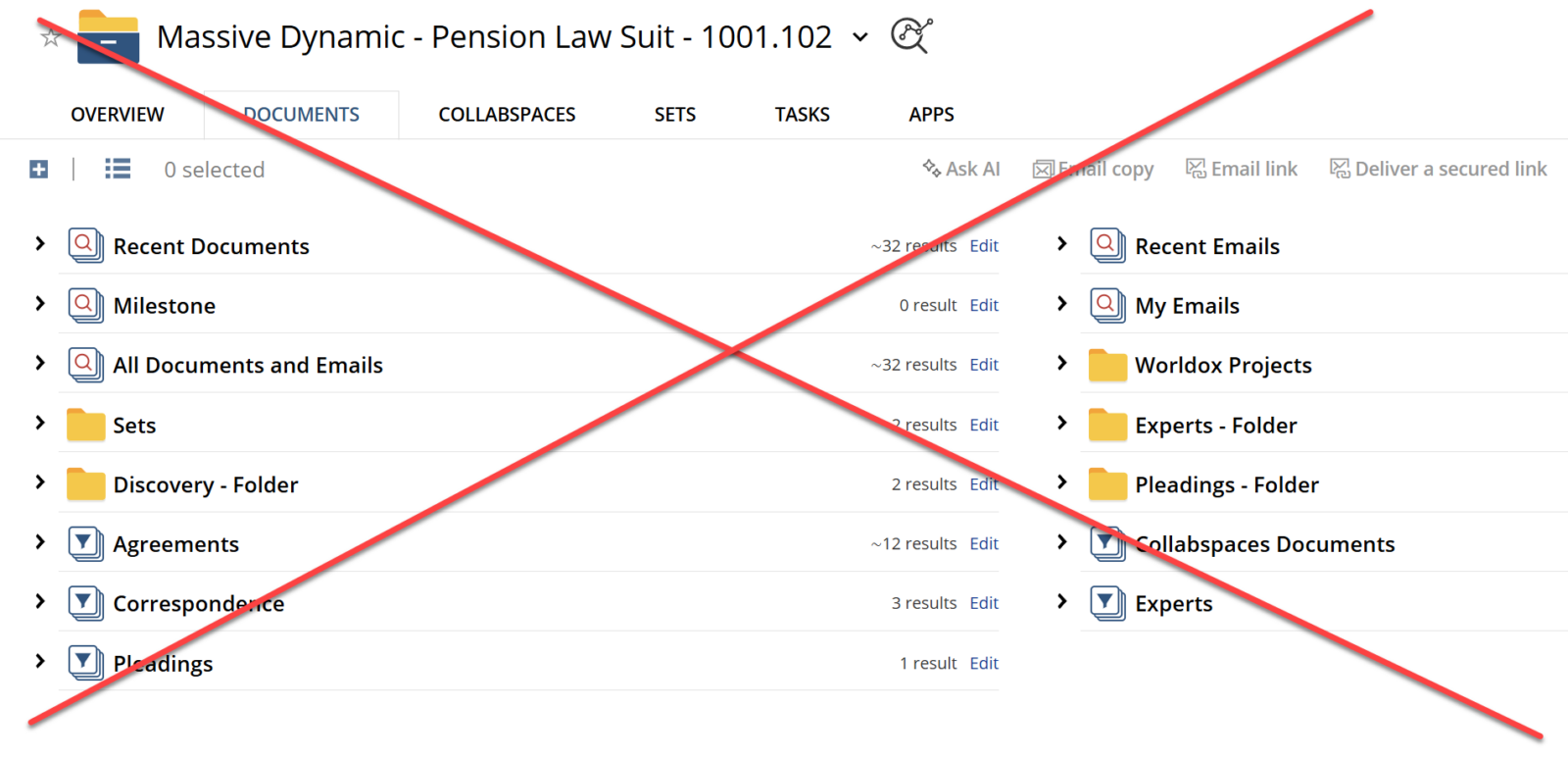
Folders are not supported. You cannot drag an entire folder into NetDocuments using drag-and-drop. If you need to upload a folder, the NDOffice upload tool is your go-to.
Tips for Dragging Emails and Attachments
You can drag an email message directly from Outlook onto the NetDocuments webpage, where it will be imported as a file. If you have an email with multiple attachments and want to grab all of them at once, click inside the attachment area of the email and press Ctrl+A to select all attachments, then drag them together in one move.
When to Use Drag and Drop — and When Not To
Drag-and-drop works well for small, ad hoc uploads. We recommend using it for 10 files or fewer. Once you start dragging more than ten files at a time, the web browser tends to slow down and can become unresponsive. For anything larger, we strongly recommend switching to the NDOffice upload tool.
Dragging New Documents vs. New Versions
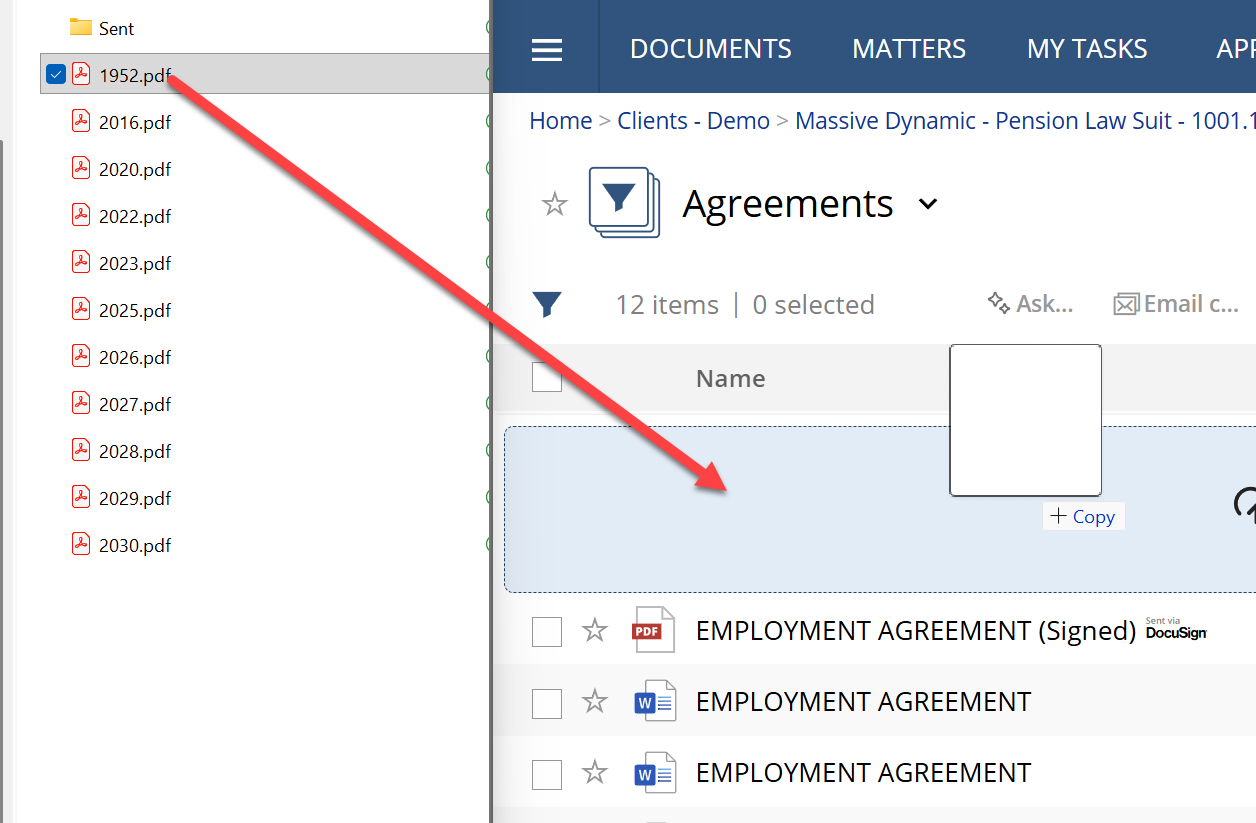
Drag-and-drop also gives you a simple way to handle document versioning. If you’re bringing in a brand-new document, drag it up to the folder or filter name, thendrop it there — NetDocuments will create a new document entry.
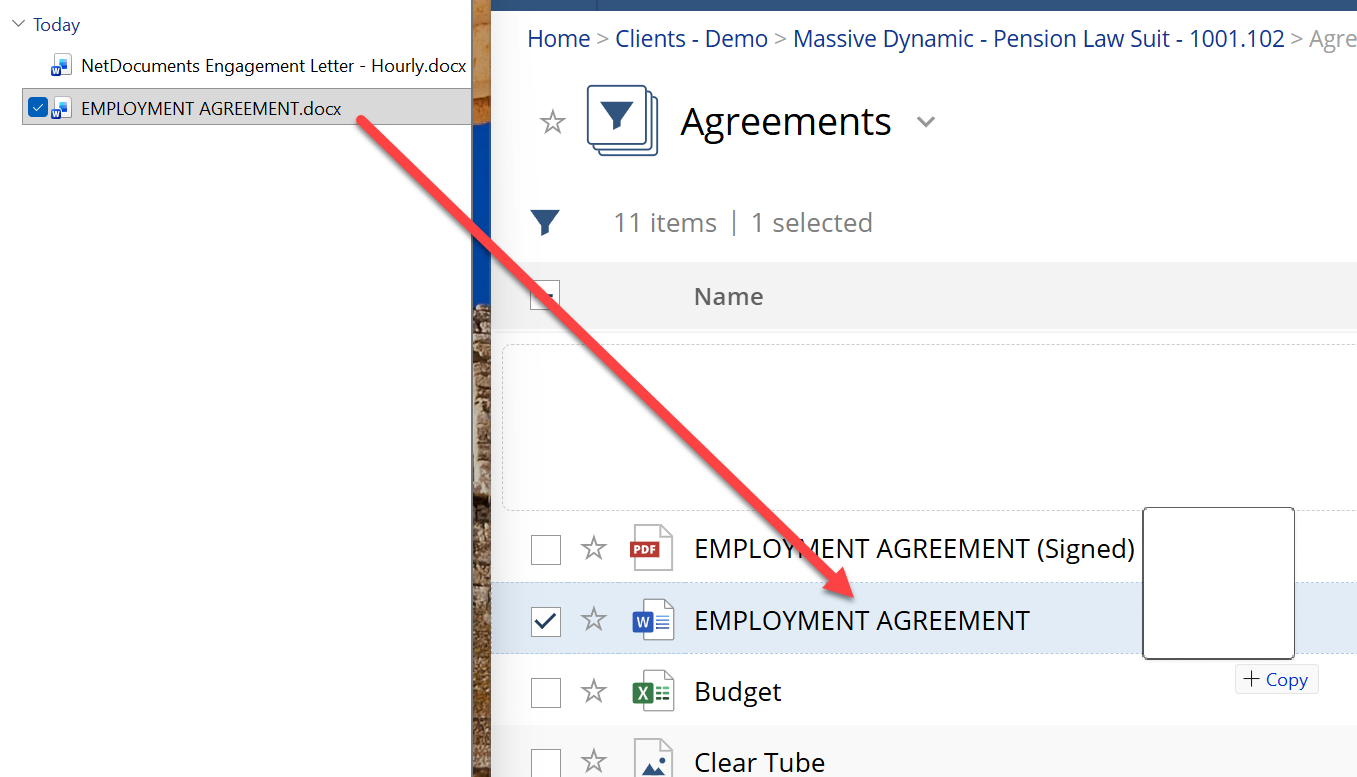
If the file you’re dragging is a new version of a document that already exists in NetDocuments, drag it directly on top of that existing document. NetDocuments will recognize it as an updated version rather than creating a duplicate.
Comparing Your Three Upload Options
Here’s a quick breakdown of how drag and drop stacks up against the other two methods:
Drag and Drop
- Works directly in the browser — no extra steps
- Supports files, emails, and email attachments
- Does not support folders
- Best for small batches (10 files or fewer)
- Everything you drag goes into the same location — you can’t split files across different folders or workspaces in a single operation
- Files are not deleted from their original location after upload
Add/Upload Button (in NetDocuments)
- Also works directly in the browser
- Supports uploading multiple documents at once
- Allows you to place documents into different locations in a single session — useful when files belong in different folders or workspaces
- Gives you the option to delete the source files after they’ve been uploaded, which helps keep your desktop or file system clean
- Files are not deleted by default unless you choose that option
NDOffice Upload Tool
- Runs outside the browser via the NDOffice desktop application
- Supports uploading folders, not just individual files
- Can handle up to 30,000 files in a single upload without bogging down your browser
- Best choice for large migrations, bulk uploads, or any time you need to move a folder structure into NetDocuments
- Files are not deleted from their original location after upload
Quick Reference Summary
| Feature | Drag & Drop | Add/Upload Button | NDOffice Upload |
|---|---|---|---|
| Works in browser | ✅ | ✅ | ❌ (desktop app) |
| Upload folders | ❌ | ❌ | ✅ |
| Max recommended files | ~10 | 150 | 30,000 |
| Upload to multiple locations at once | ❌ | ✅ | ❌ |
| Option to delete source files | ❌ | ✅ | ❌ |
| Supports email drag | ✅ | ❌ | ❌ |
Bottom Line
Drag and drop is a convenient, friction-free way to get a handful of files into NetDocuments quickly — but it’s best reserved for small, same-destination uploads. For larger batches or more complex scenarios, the Add/Upload button or the NDOffice upload tool will serve you much better. Knowing which tool to reach for in each situation will save you time and keep your browser running smoothly.
Have questions about the best way to get documents into your NetDocuments environment? Contact Optiable — we’re happy to help.