

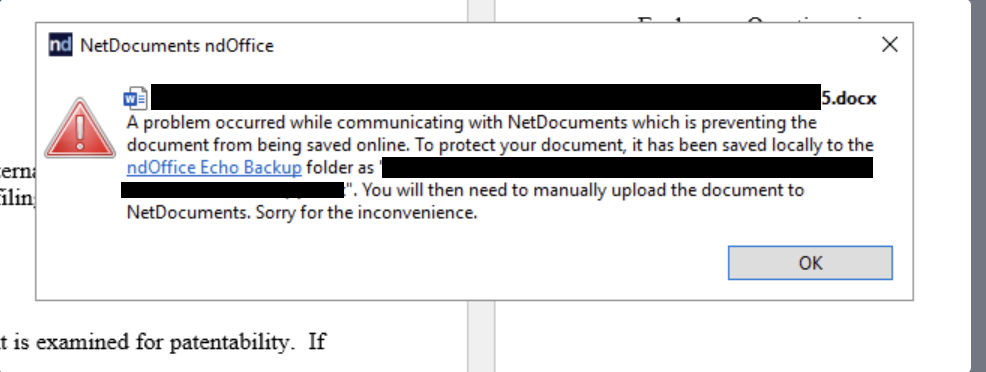
If you’ve ever been working in Word or Excel through ndOffice, gone to save, and had it stop you with “A problem occurred while communicating with NetDocuments, which is preventing the document from being saved online,” you’re not alone. We’ve seen this one across the 550+ law firms Optiable has worked with, and it’s one of the most misleading messages ndOffice throws. The wording points a finger straight at your internet connection. Most of the time, the connection is fine.
Here’s the good news up front, twice over: your work isn’t lost, and this is almost always a one-off.
First, the Frequency: This Is Usually a One-Time Event
Before you go hunting for a systemic problem, know that for most people there isn’t one. You’ll see this error once, recover your document, and not run into it again for months — sometimes years. A single occurrence on a single document is not a sign your firm’s setup is broken.
It’s worth understanding the causes anyway, because the fix depends entirely on which one you hit — and because if you’re seeing it every day, that’s a different conversation. More on that at the end.
The Good News: Your Document Is Safe
The moment this error appears, ndOffice has already written a copy of your document to its local Echo Backup folder. That’s the whole point of the Echo folder — it’s ndOffice’s safety net, and it catches a recovery copy whenever a save to NetDocuments fails, no matter the reason.
So your first job isn’t to troubleshoot. It’s to get your document back.
Step 1: Open the Echo Folder From the System Tray
Right-click the ndOffice icon in your Windows system tray, click the gear icon, and choose View Echo Folder. That drops you straight into the right place without typing a path.
If you’d rather browse to it, the default location is %USERPROFILE%\ND Office Echo\ — paste that into the File Explorer address bar, open the Vault folder, then the Backup subfolder inside it.
Step 2: Find Your File in the Backup Subfolder
Look in the Backup subfolder for your document. It’ll be sitting there under its own filename, exactly as ndOffice saved it the moment the error hit.
Step 3: Save the Recovered Copy Back to NetDocuments
Open the backup copy and use your eyeballs to confirm it’s the version with your latest work in it. Then save it into NetDocuments as a new version of the original document — not as a new document. Now you’re whole again, and you can work out what caused it at your own pace.
Why You See the “Communicating With NetDocuments” Error
Here’s the frustrating part, and it’s a known sore spot in the NetDocuments community: NetDocuments uses this one generic message for several completely unrelated problems. The text describes a communication failure, so everyone reads it as a network problem and stops there. Sometimes it is. Often it isn’t.
These are the causes worth knowing, roughly in the order I’d rule them out.
Cause 1: Antivirus Software Scanning the Echo Folder
This is the one that gets overlooked, and it’s my first suspect on an intermittent case. Every time ndOffice saves, it writes to the Echo folder as part of its normal process. If your firm’s antivirus is scanning that same folder in real time, it can lock the file for the split second ndOffice needs it — and the save fails.
That timing is exactly why the error feels random. The antivirus scan and the ndOffice save have to collide on the same instant, which might happen once and then not again for a year.
The fix is an exclusion:
- Exclude the Echo folder from real-time scanning — have IT add
%USERPROFILE%\ND Office Echo\(defaultC:\Users\<username>\ND Office Echo\) to the antivirus exclusion list. - Push it firm-wide — if your antivirus is centrally managed, deploy the exclusion by policy so every workstation gets it, not just the one that complained.
- Then watch it — if the error doesn’t come back, that was your cause.
This is an IT task. If you’re an end user, this is the point where you send the path above to whoever manages your antivirus.
Cause 2: A Real Network Interruption
Sometimes the message means exactly what it says. If your internet drops, wobbles, or hiccups for a moment while ndOffice is mid-save, the save fails and you get the error — legitimately, this time.
What to check:
- Confirm you’re actually online — load any website in your browser.
- If you’re on VPN, make sure it hasn’t quietly dropped.
- If you’re on Wi-Fi, a wired connection is steadier while you finish the save.
- Look at your other cloud apps — if Outlook, Teams, and OneDrive are all struggling at the same time, the problem is your connection, not NetDocuments.
Whatever happened, your document is already in the Echo Backup folder, so recover it the way we covered above once you’re back online.
Cause 3: A Server-Side Problem at NetDocuments
Rarely, it’s genuinely on NetDocuments’ end — maintenance, load, or a temporary error processing your save.
What to do:
- Check the status page at status.netdocuments.com for any reported outage or maintenance window.
- Wait a few minutes and try again — server-side blips usually clear on their own.
- If it’s hitting several people at your firm at once, call NetDocuments Technical Support at 801-226-6882, Option 2.
When You Should Actually Worry
Match your response to the pattern:
- Once, on one document — Recover from Echo and move on. This is the normal case, and it doesn’t mean anything.
- Repeatedly, for one person — Start with Cause 1 (antivirus) and Cause 2 (Workspace rights). Those are the two that hide behind this message for a single user.
- Every day, across the whole firm — That’s not a random hiccup, it’s a configuration problem — usually an antivirus policy or a security-group setup — and it’s worth having someone look at it before it becomes the thing everyone hates about the system.
Need Help?
If this error is following your firm around instead of turning up once in a blue moon, that’s not something to keep recovering from by hand. It’s usually an antivirus exclusion or a Workspace security fix, and we can tell you which one in a single call.
Schedule a free consultation at go.oncehub.com/optconsult.
Craig Bayer is the founder of Optiable and has guided over 550 law firms through NetDocuments implementations since 2010, specializing in firms with 10 to 150 users.
CONNECT WITH CRAIG → https://www.linkedin.com/in/craigbayer/